
Get unstuck and contact support
Check the account, salon and result before repeating an action.
Before you start
Keep the exact error message, page, approximate time and the action you attempted. Do not send passwords or verification codes.
Open Help & supportStep by step
Check the context
Confirm the signed-in account and selected salon. Staff need an active linked profile; owners and managers need the relevant permissions for each tool.
Check whether the action completed
After a slow or failed booking response, check My bookings or the salon booking list before submitting again. If salon lookup fails, avoid creating duplicate listings.
Continue through support
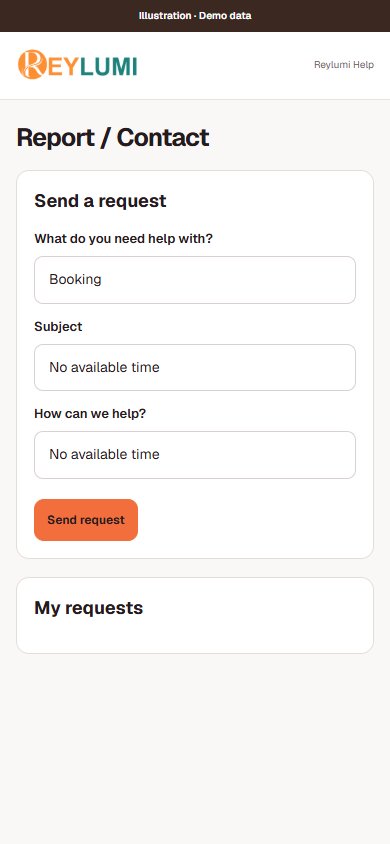
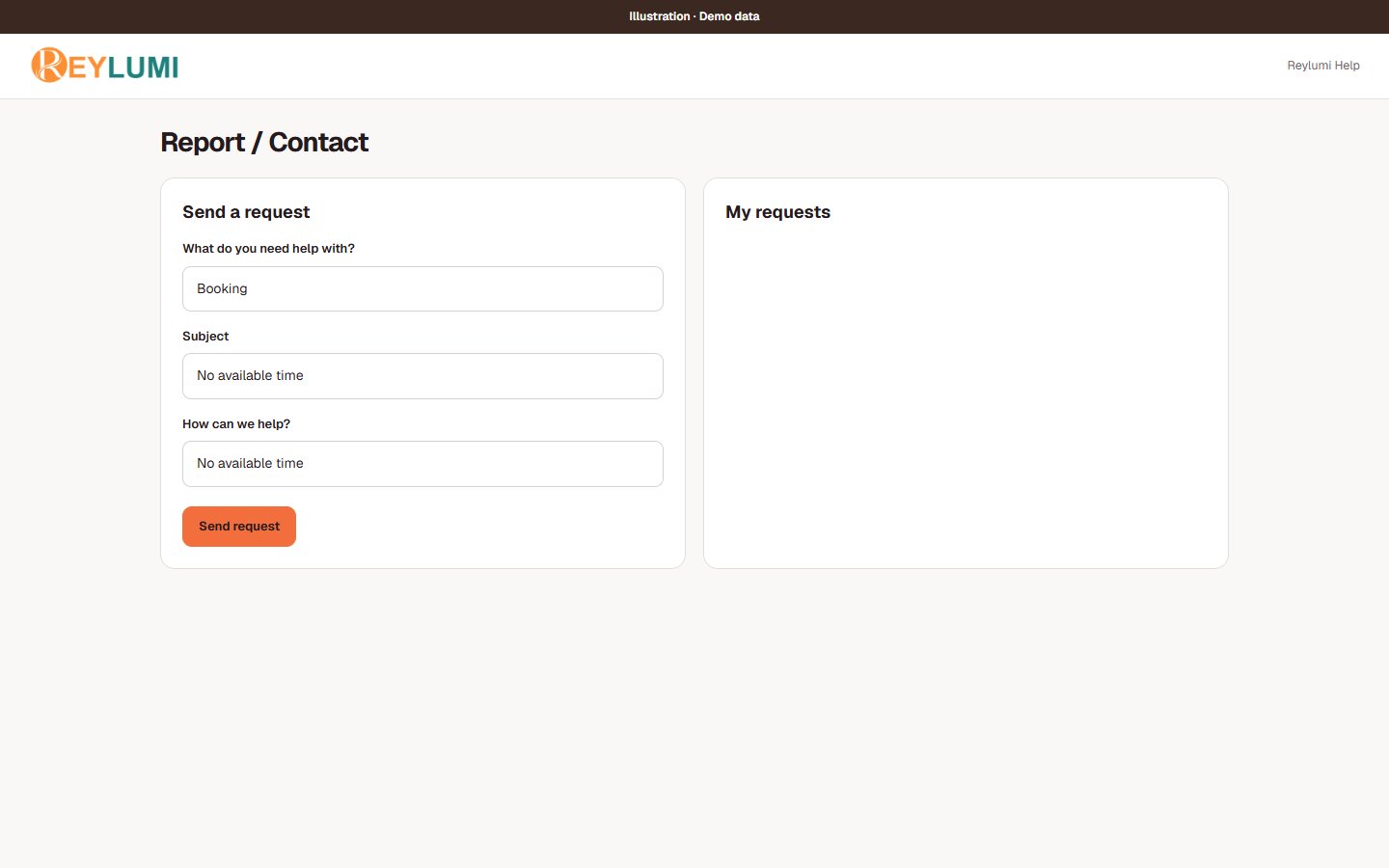
Use Help & support or the help control on the affected screen. Include the error and expected result; hide customer contact details, financial records and private setup links in any image you share.
Detailed walkthroughs
Find the cause before repeating an action
- Check account, salon, date and permissions first. For a staff portal, confirm the active linked staff profile; for a POS device, confirm its POS ID and allowed actions.
- Check the saved outcome: booking list for an appointment, ticket/payment entries for checkout, My Applications for a connection and the saved period for payroll.
- For device sync problems, keep the device data, reconnect and inspect the sync indicator. For conflicting edits, compare the latest saved record before choosing which values to keep.
- Open Help & support from the affected screen. Include the task, page, time, exact error and what you expected. Hide private contact, payroll and setup-link information in screenshots.
Check the result: Support receives enough context to locate the failed step without passwords, codes or unrelated private records.
Example: Useful report: “Create Salon → Drayko Demo → Could not check existing salons, around 10:15; no salon appeared afterward.”
If something goes wrong
- Do not repeatedly charge a card, create duplicate salons or submit the same booking while the original outcome is uncertain.
Details and common questions
- Assigned staff can see the customer name and full phone number in appointment details. Customer suggestions may also expose same-salon names and phones when staff booking creation is enabled. Use this information only for authorized salon work.
Screen illustrations