
Create and access your account
Sign in and keep your personal account separate from salon access.
Before you start
Use your own email and the sign-in method offered on the screen.
Open sign upStep by step
Create an account or sign in
Open sign up if you are new, or sign in to your existing account. Complete any verification shown before continuing.
Fill in the account form
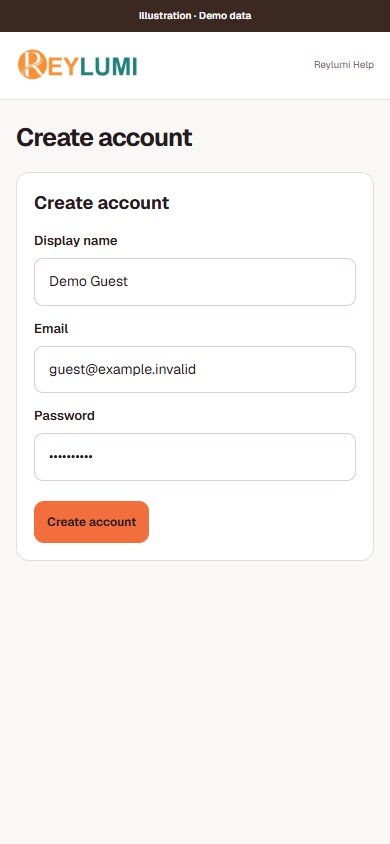
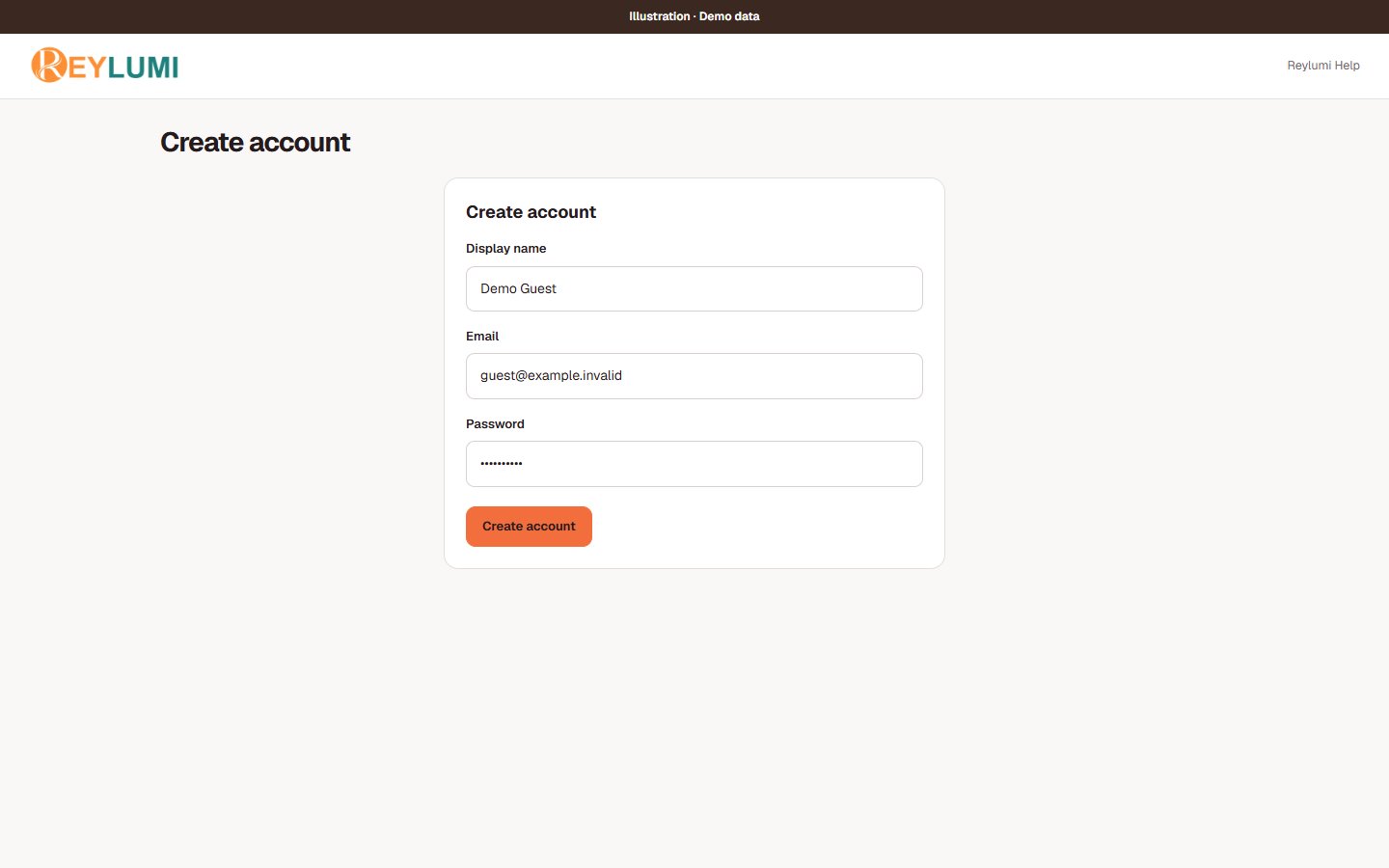
On Create account, enter your display name, email and password, then choose Create account. If verification is requested, finish it before signing in.
Review My place
Open My place to see the places and roles connected to your account. A personal account alone does not grant salon management access.
Use the right account
If a salon or staff area is missing, confirm the signed-in account and ask the salon owner to check your connection.
Detailed walkthroughs
Sign up, sign in and check access
- On Create account, enter your display name, email and password. Check the email address before submitting and complete the verification requested on screen.
- Return to Sign in using the same account. Open My place and check the salon name and role before editing salon information.
- Use Settings → Login & security to review the account controls available to you. Keep your personal sign-in separate from a shared POS ID.
Check the result: My place shows the correct account and any accepted salon connections.
Example: Mai accepts a staff invitation while signed in to Mai’s own email. The salon then appears under that account.
If something goes wrong
- No salon after sign-in: compare the invitation’s intended account with the email you used, then ask the owner to check the link.
- If verification or sign-in fails, keep the error message for support; never send your password or verification code.
Screen illustrations