
Find, follow and book
Discover a salon, choose an available service and keep track of your appointment.
Before you start
A salon needs to offer online booking with eligible services, staff and available times.
Open ExploreStep by step
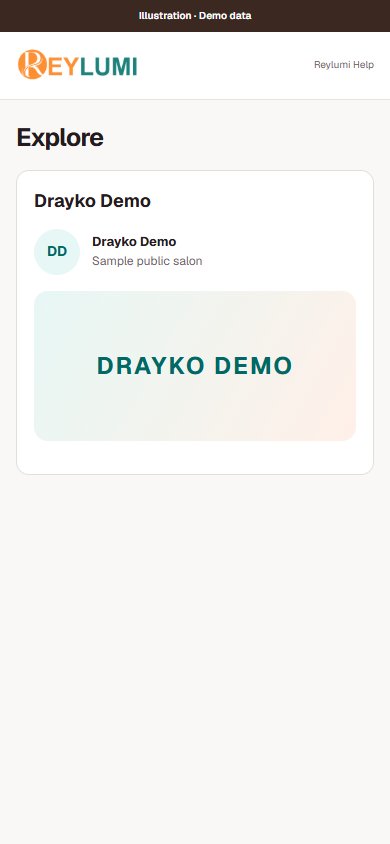
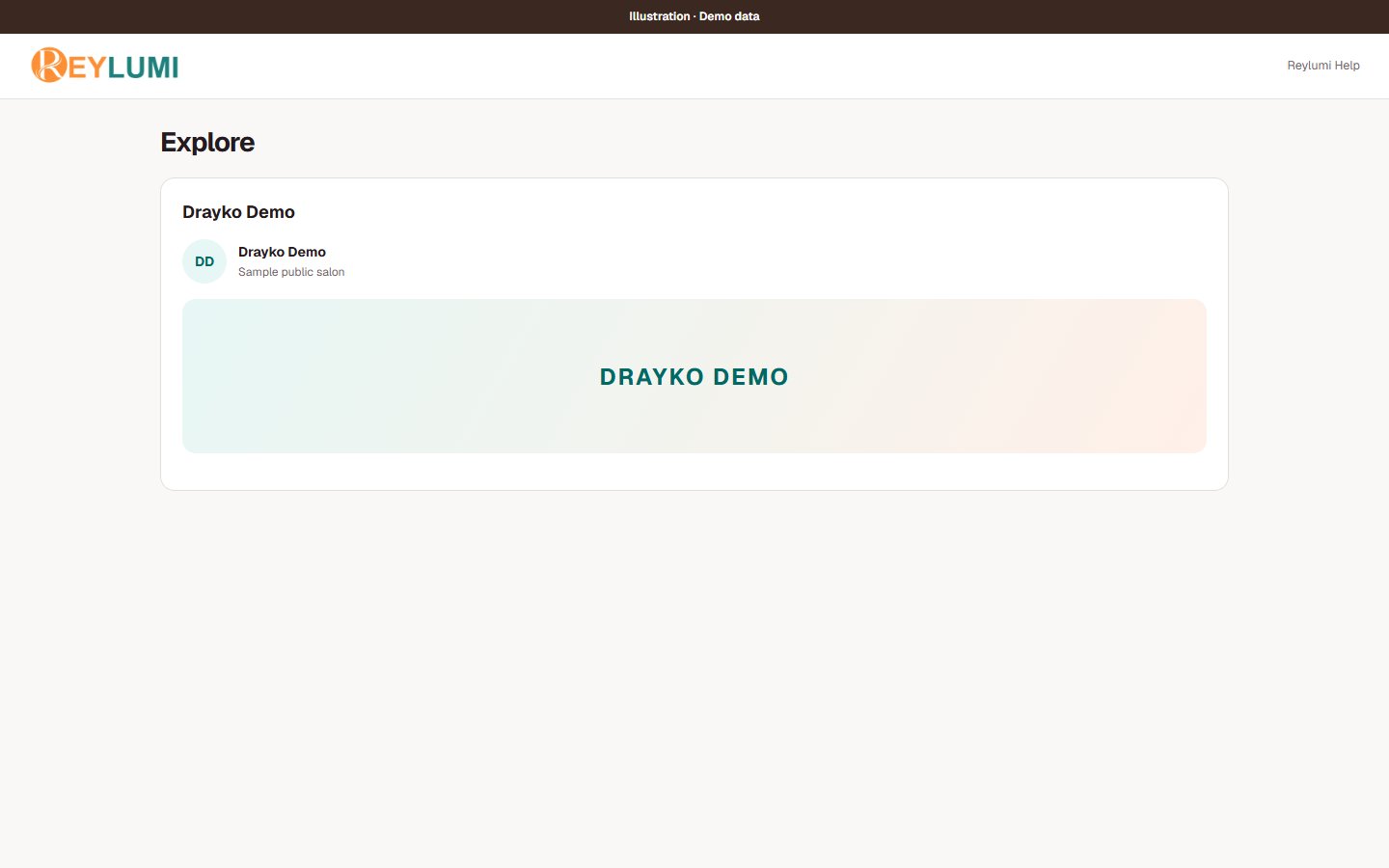
Explore profiles
Search Explore and open a salon or beauty profile. Use the save or follow control available on that profile to find it again.
Choose services and staff
Open the salon booking link. Select the services you need and a staff member when that option is offered. Check the estimated duration and price.
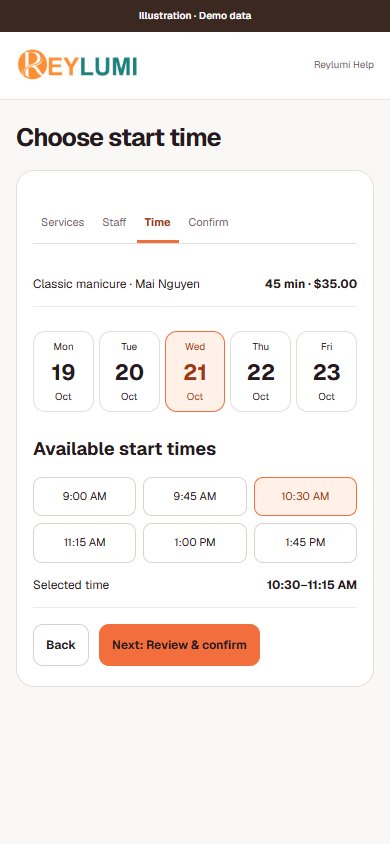
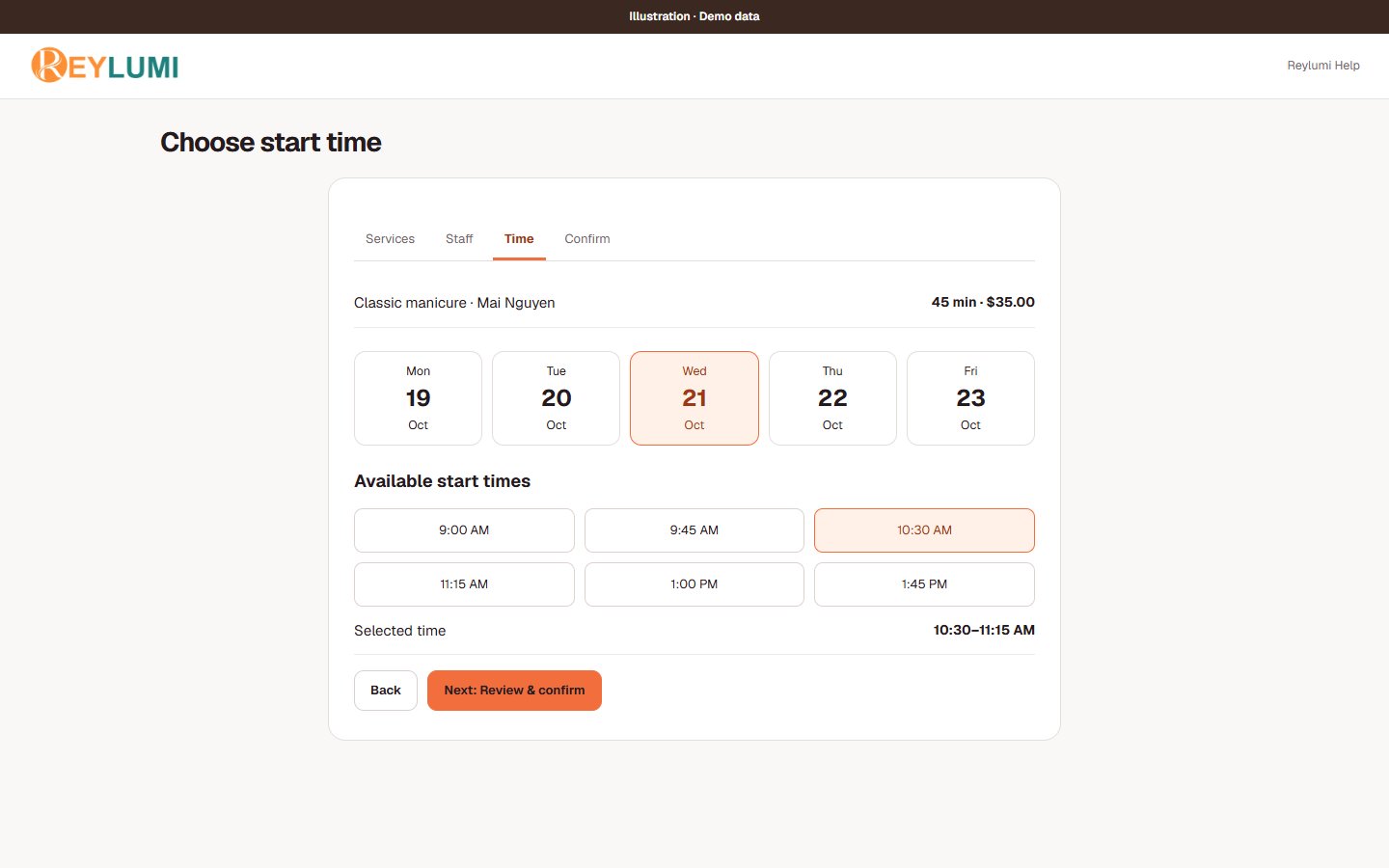
Choose an available start time
Pick a date, then choose an available start time. If no time is offered, try another date or service and check with the salon; an unavailable slot cannot be booked.
Review and confirm
At the confirmation step, review the salon, services, staff, date, time and customer details. The final action can be Confirm booking, Request appointment or Continue to payment, depending on salon settings. Read any deposit and cancellation terms.
Read the booking status
Read the result after submitting: Booking confirmed confirms the appointment; Request received or Awaiting salon confirmation still needs the salon response. Signed-in linked bookings appear in My bookings. Guest bookings may use a secure Manage booking link; keep it private.
Check the result
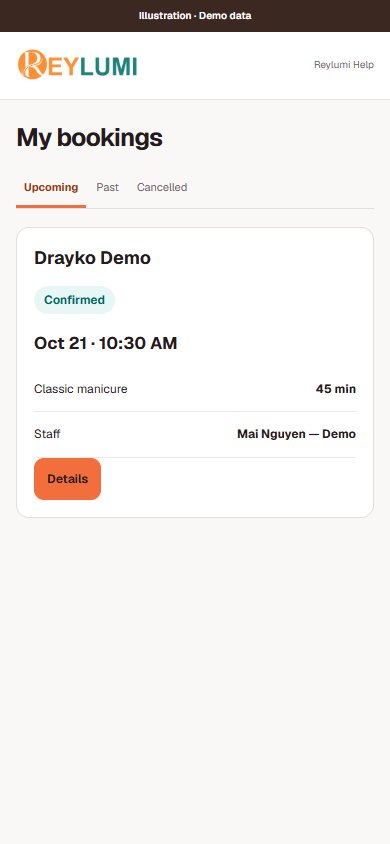
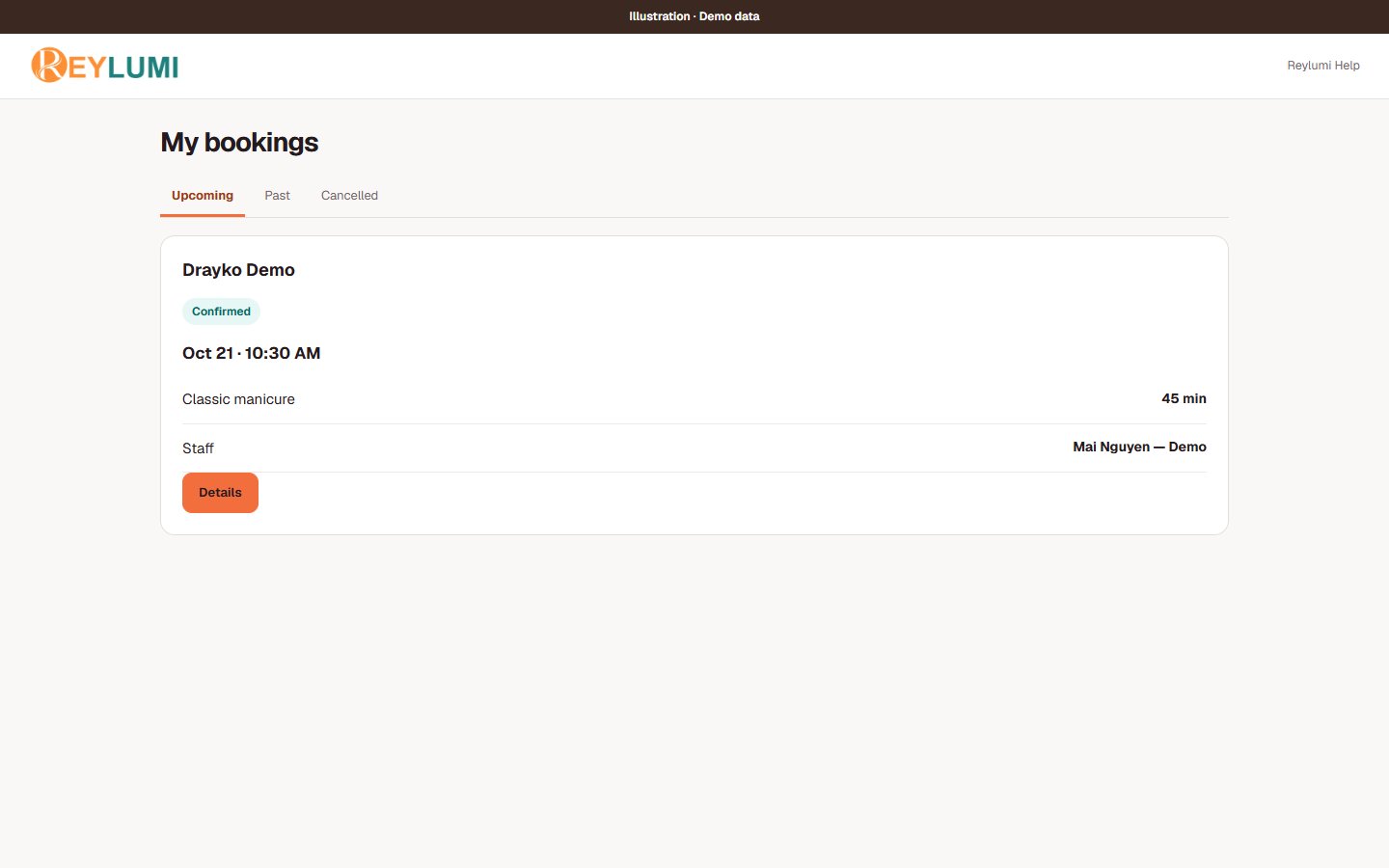
For an account-linked booking, open My bookings and choose Details. For a guest booking, use its secure manage link. Use only the change or cancellation options offered for that appointment; salon rules can limit them.
Detailed walkthroughs
Find and return to a salon
- Open Explore, search the salon or service you want and check the location on the result before opening its profile.
- Read the profile and service information. Use Follow on a profile or the save control on a post when offered; sign in if requested.
- Choose Book or the salon’s direct booking link. Confirm the salon name again before selecting a service.
Check the result: The selected booking page names the salon you intended to visit.
Example: Search “manicure”, open Drayko Demo and choose its booking link. Following a profile does not reserve a time.
If something goes wrong
- If there is no booking action, the profile may not currently offer online booking. Contact the salon instead of assuming a time is reserved.
Finish a booking and recognize its status
- Choose the service, an offered staff option, a date and an available start time. Review the price, duration and contact information.
- Read the final button: Confirm booking confirms directly; Request appointment asks the salon to respond; Continue to payment opens the required payment step.
- Read the result and retain the booking reference. Open My bookings → Details for a linked booking, or the private Manage booking link for a guest booking.
- For a change or cancellation, open that booking and use the action offered there. Check the resulting status after submitting.
Check the result: Booking confirmed means confirmed. Request received or Awaiting salon confirmation means a response is still needed.
Example: Mai requests a 10:00 appointment. While Awaiting salon confirmation is shown, Mai has submitted a request, not a confirmed appointment.
If something goes wrong
- No time offered: check a different date or staff option. A service duration, break or time off can make an otherwise open day unavailable.
- Slow response: check the booking list or manage link before submitting again. Keep guest manage links private.
Details and common questions
- If a deposit is shown, review the amount and terms before choosing to pay. A payment page is not an appointment confirmation.
Screen illustrations