
Prepare your salon for booking
Set up services, staff and available times before sharing a booking link.
Before you start
Select the correct salon and use an account with the required service, staff and booking permissions.
Open ServicesStep by step
Prepare services
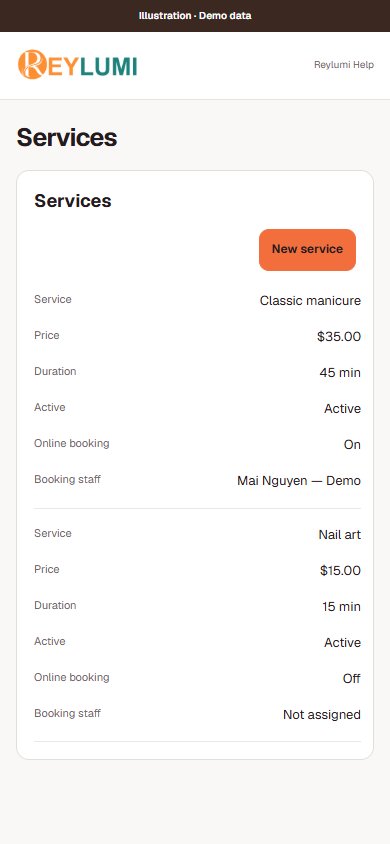
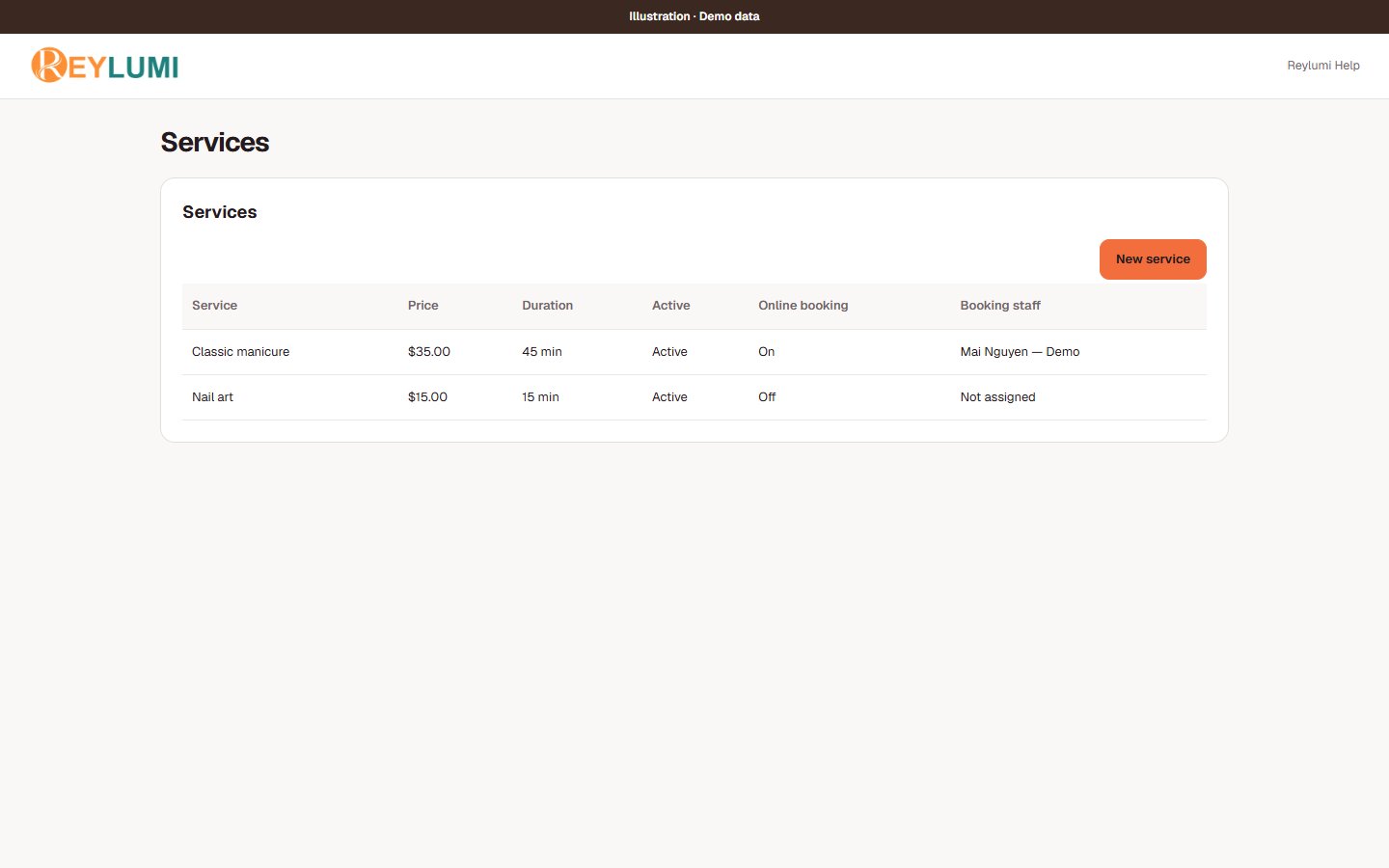
In Services, check prices and durations. Active in salon and Online booking are separate controls. Online booking is off by default for a new service; enable it when ready and configure eligible Booking staff.
Prepare the team and hours
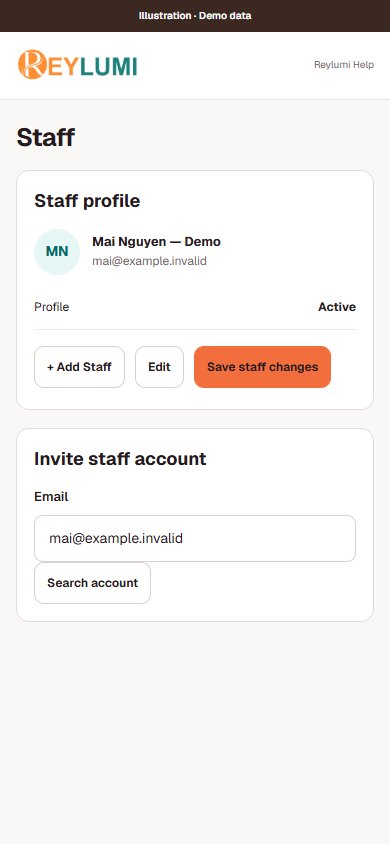
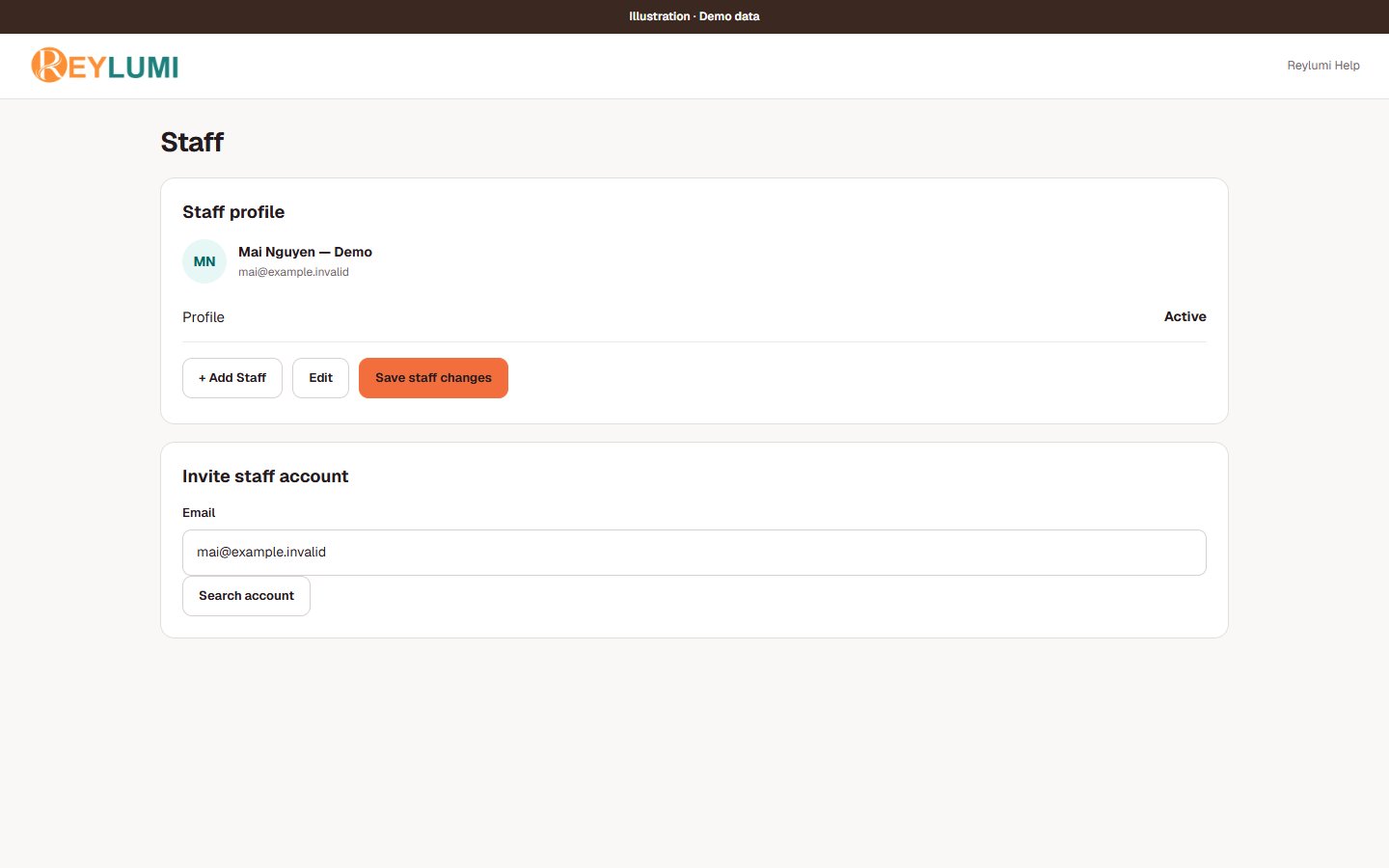
Check active staff profiles, the services each person can provide and their working availability. Review the salon booking settings.
Check booking availability
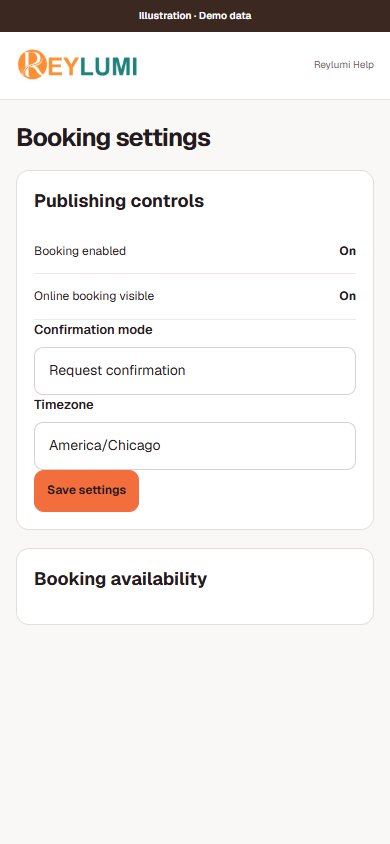
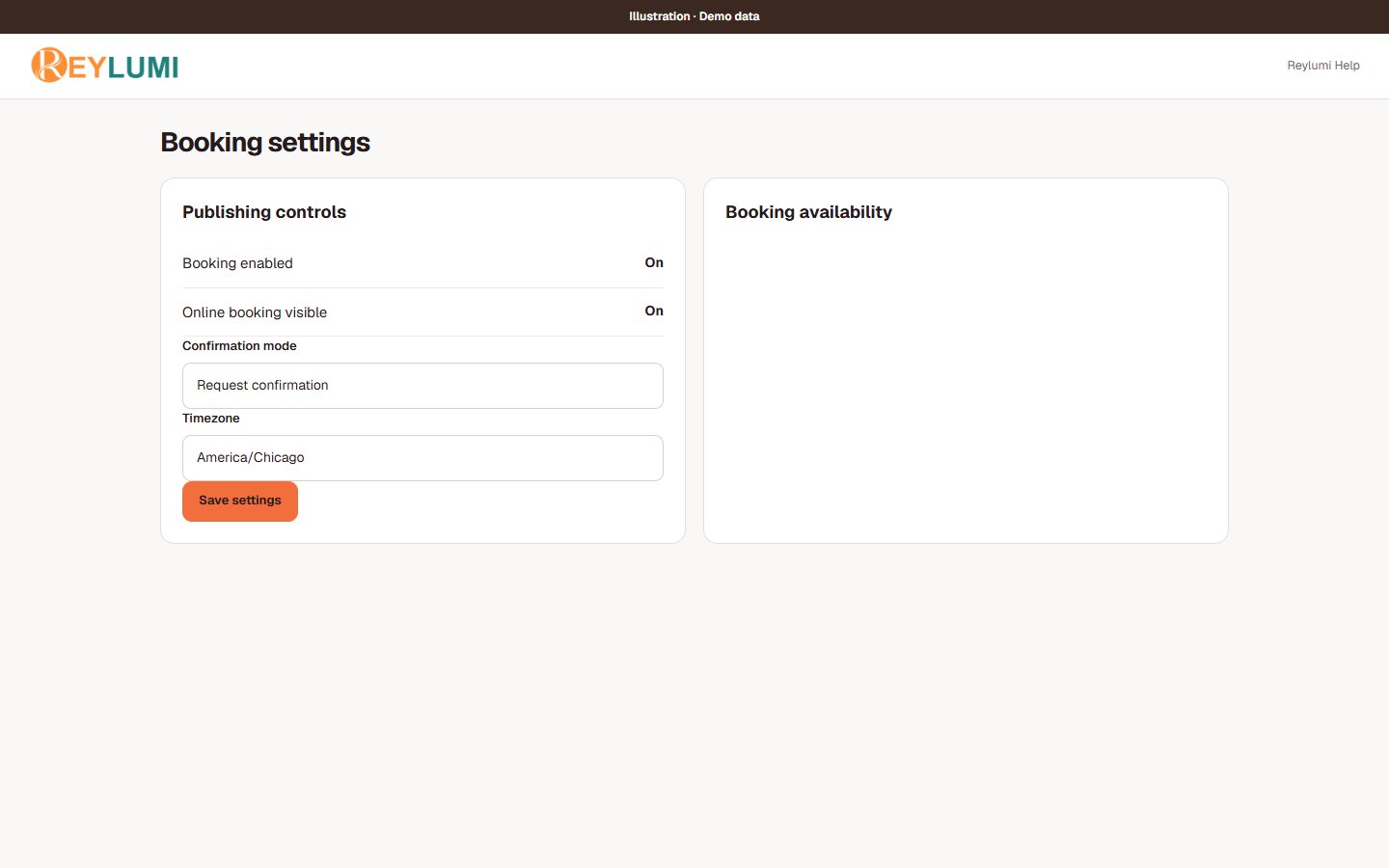
Open Bookings, then Settings (or /bookings?tab=settings). Review Booking enabled, Online booking visible, Confirmation mode and Timezone; save with Save settings. Set staff booking availability separately. Salon settings → Operating status describes public open/closed hours and does not replace booking setup.
Verify the customer flow
Open the salon booking link as a customer and verify that the intended services and times are offered. Confirm one authorized test appointment and check that it appears in the salon workspace before sharing the link widely.
Detailed walkthroughs
Prepare one bookable service from start to finish
- In Services, review the service name, price and duration. Keep Active in salon enabled for services you offer. Enable Online booking separately for those customers may book online.
- Review Booking staff for that service and choose eligible active staff. A service without eligible staff or working hours will not produce bookable times.
- In booking setup, open Staff availability and select the professional. Enter Weekly hours, breaks and Time off, then save the changes.
Check the result: The intended service and staff appear together with available times on the customer booking page.
Example: A 45-minute service needs a full 45-minute opening in the selected staff schedule; a 30-minute gap is not enough.
If something goes wrong
- Active in salon does not enable Online booking. Check both controls and the staff schedule when a service is missing.
Open online booking and share the right link
- Open Bookings → Settings. Review Booking enabled, Online booking visible, Confirmation mode and Timezone, then choose Save settings.
- Open the salon’s public booking link from its profile. The booking address uses /book/ followed by the salon identifier; share that opened address, not a private admin or guest manage link.
- Before sharing widely, check services and times on a customer device. If you create an authorized test booking, check its actual result and the salon’s booking list.
Check the result: The link opens the correct salon and the chosen confirmation mode behaves as intended.
Example: A salon using requests should expect Request received first, then a salon response.
If something goes wrong
- Operating status in Salon settings describes public opening hours; it does not replace online booking controls and staff availability.
Details and common questions
- A visible public salon profile does not by itself prove that online booking is ready.
Screen illustrations