
Set up POS and displays
Choose the POS workspace and connect a customer display when needed.
Before you start
Use an authorized salon account or device session. Download and setup options depend on your salon and the available release.
Open POS settingsStep by step
Choose how to open POS
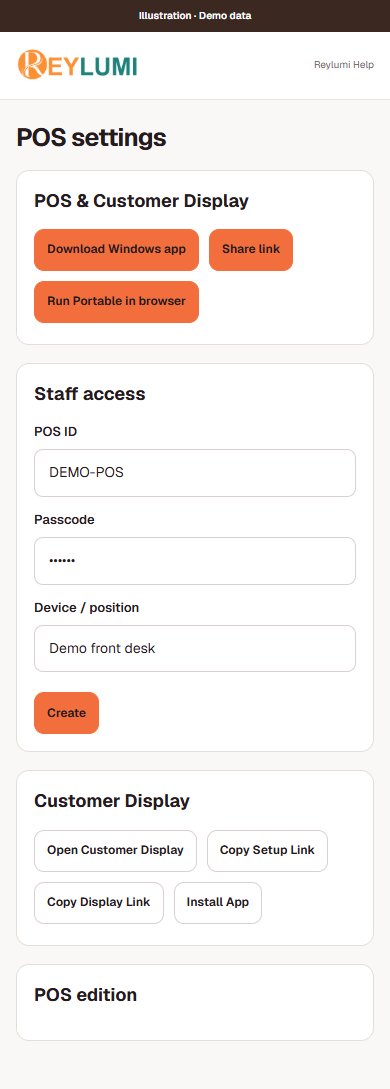
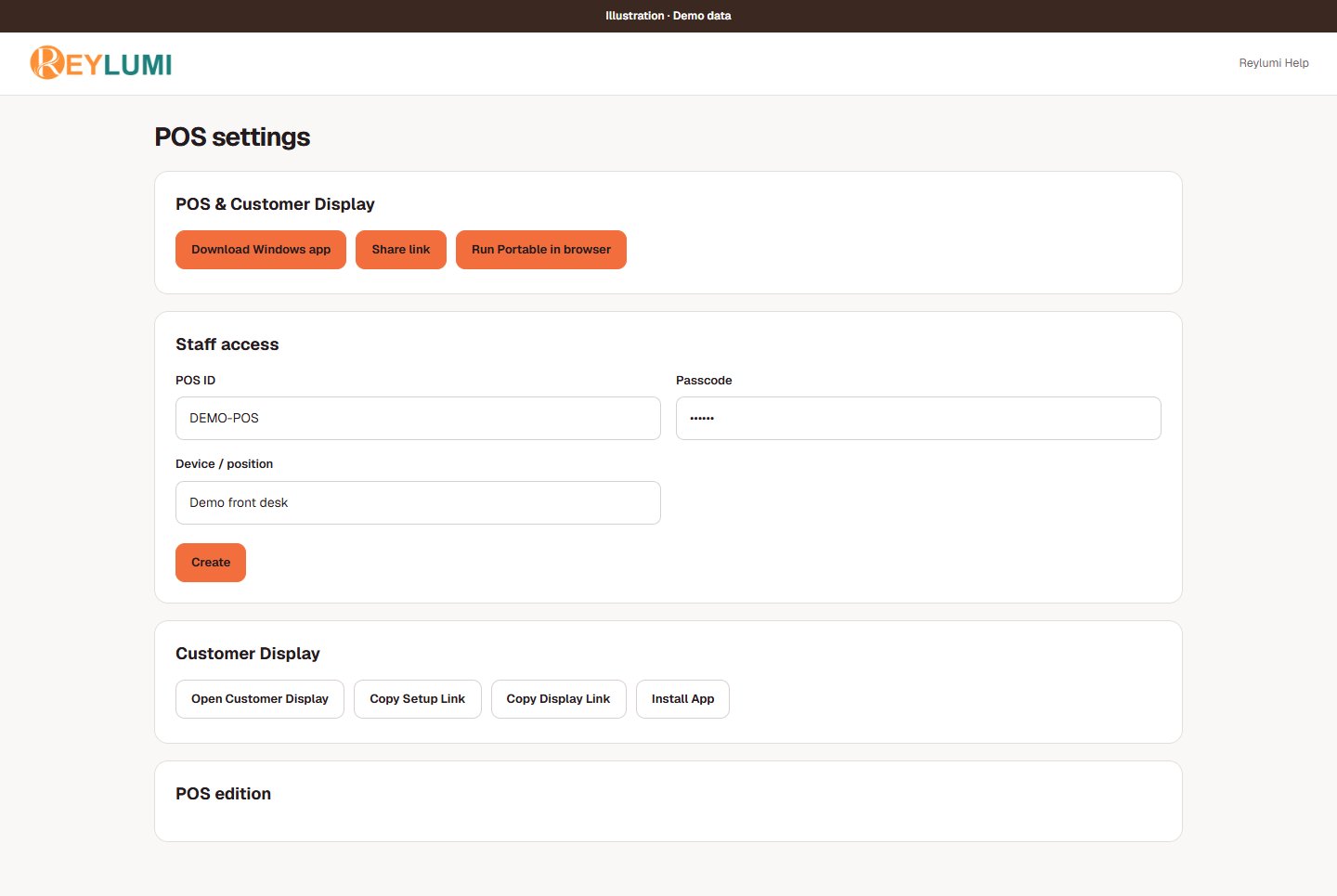
In POS settings, review the Windows download when available or open Portable in the browser. Follow the setup shown for that edition.
Connect the customer display
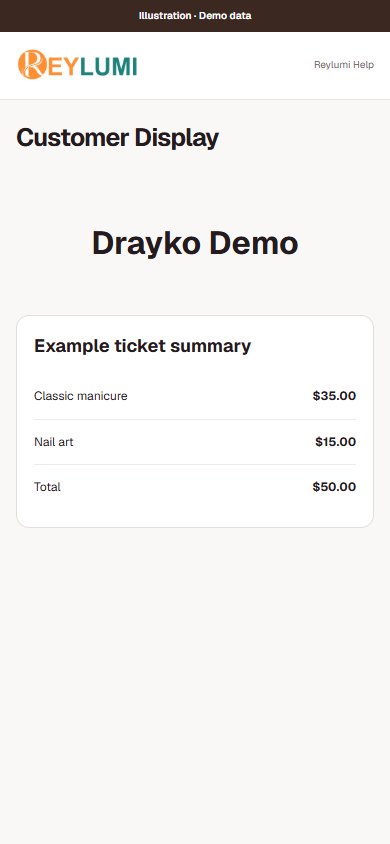
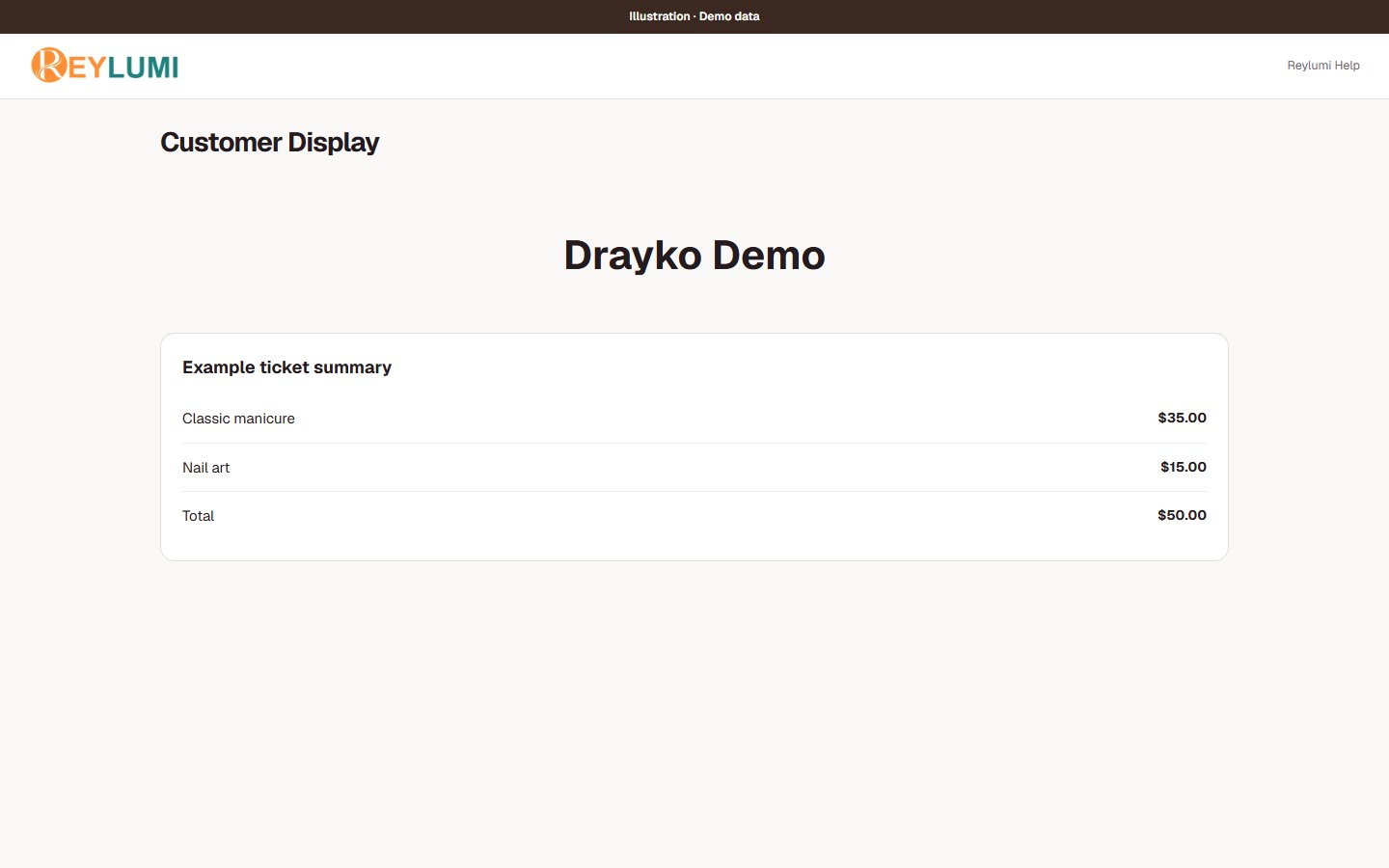
Use the Customer Display setup link or QR code from POS settings on the intended device. Verify the correct salon and a test ticket before using it with customers.
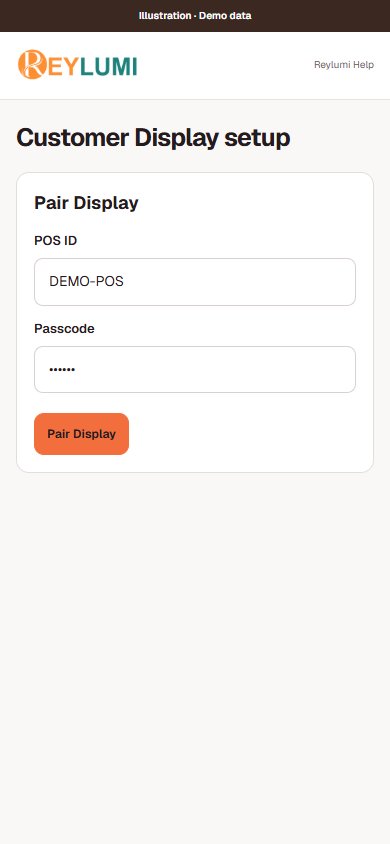
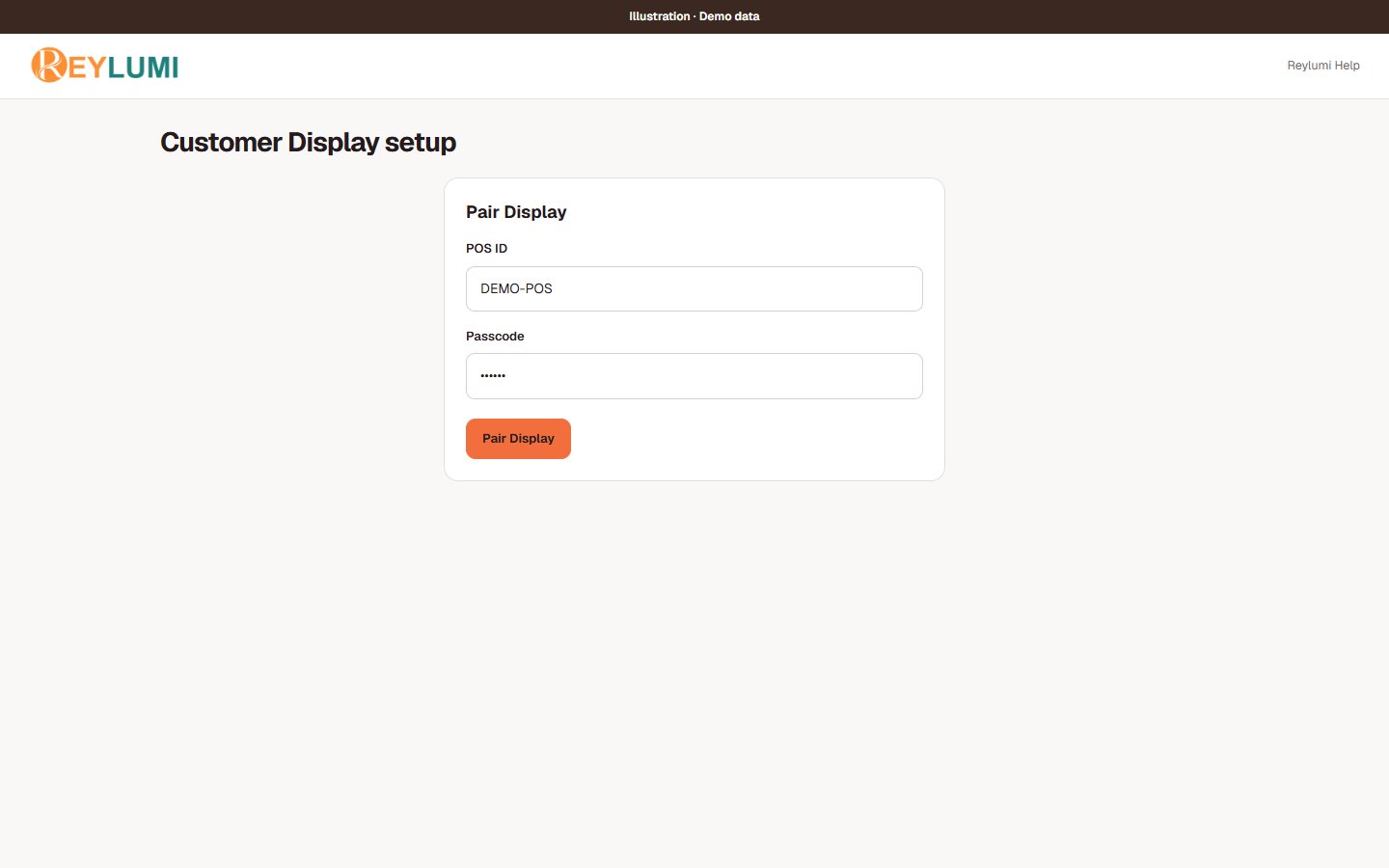
Pair the display device
In POS settings → Staff access, an authorized manager creates a POS ID and passcode and reviews Allowed actions. An active POS ID is required to pair Customer Display. Enter those credentials on the intended display device; keep them and the setup link private.
Add the screen to an iPad
Open the intended screen in Safari. Use Share, then Add to Home Screen when available. Launch the saved icon and verify the salon and display connection again.
Keep staff work separate
Staff Daily and staff appointments are signed-in work areas. Customer Display is a customer-facing screen. Do not show staff account details or payroll on a public display.
Detailed walkthroughs
Install Windows POS or open Portable
- Open POS Settings → Install POS & customer display. On a Windows computer or touchscreen, choose Download Windows app when available. Share link can send the download address to the intended computer.
- Open the downloaded .exe and follow setup. Verify the publisher before approving the Windows prompt, then open the POS app.
- In POS settings → Staff access, an authorized manager creates an active POS ID and passcode and selects Allowed actions. Sign into the POS app with those credentials.
- Alternatively choose Run Portable in browser. Confirm the salon, then check the sync indicator before daily work. Internet is required for sign-in and syncing.
Check the result: The correct salon opens and the POS ID can perform only its allowed actions.
Example: A reception POS ID can be limited to the actions needed at the desk; the owner keeps a separate personal management account.
If something goes wrong
- Windows download unavailable: use the offered browser option or contact support. The Windows installer is not an iPad application.
- Do not clear browser/app data or reinstall while tickets are waiting to sync. Keep the same device and review the sync status first.
Pair a separate customer display
- Ensure an active POS ID exists. In POS settings → Customer Display, use Setup QR or Install App on the intended display device.
- On iPad, open the setup link in Safari and pair with the salon POS ID and passcode. Keep the setup link and credentials private.
- After pairing, use Safari → Share → Add to Home Screen when offered. Reopen the saved icon and verify the salon and an authorized example ticket.
Check the result: The display shows the intended salon and the current customer-facing ticket information.
Example: The receptionist uses Windows POS while the customer sees a separate iPad display. Staff Daily stays on the staff member’s private device.
If something goes wrong
- No active POS ID or pairing unavailable: resolve the message in POS settings before retrying. Do not use an owner’s signed-in payroll page as a customer display.
Details and common questions
- A separate public staff-display setup has not been verified in this guide. Do not treat Staff Daily as that feature.
Screen illustrations