
Staff check-in and ticket checkout
Record staff attendance and complete the correct customer ticket.
Before you start
Use the correct salon and a POS account or device with permission to manage the ticket.
Open POSStep by step
Use staff check-in correctly
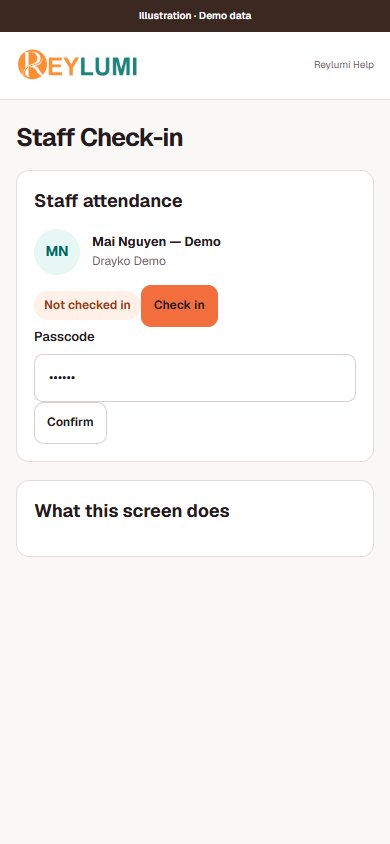
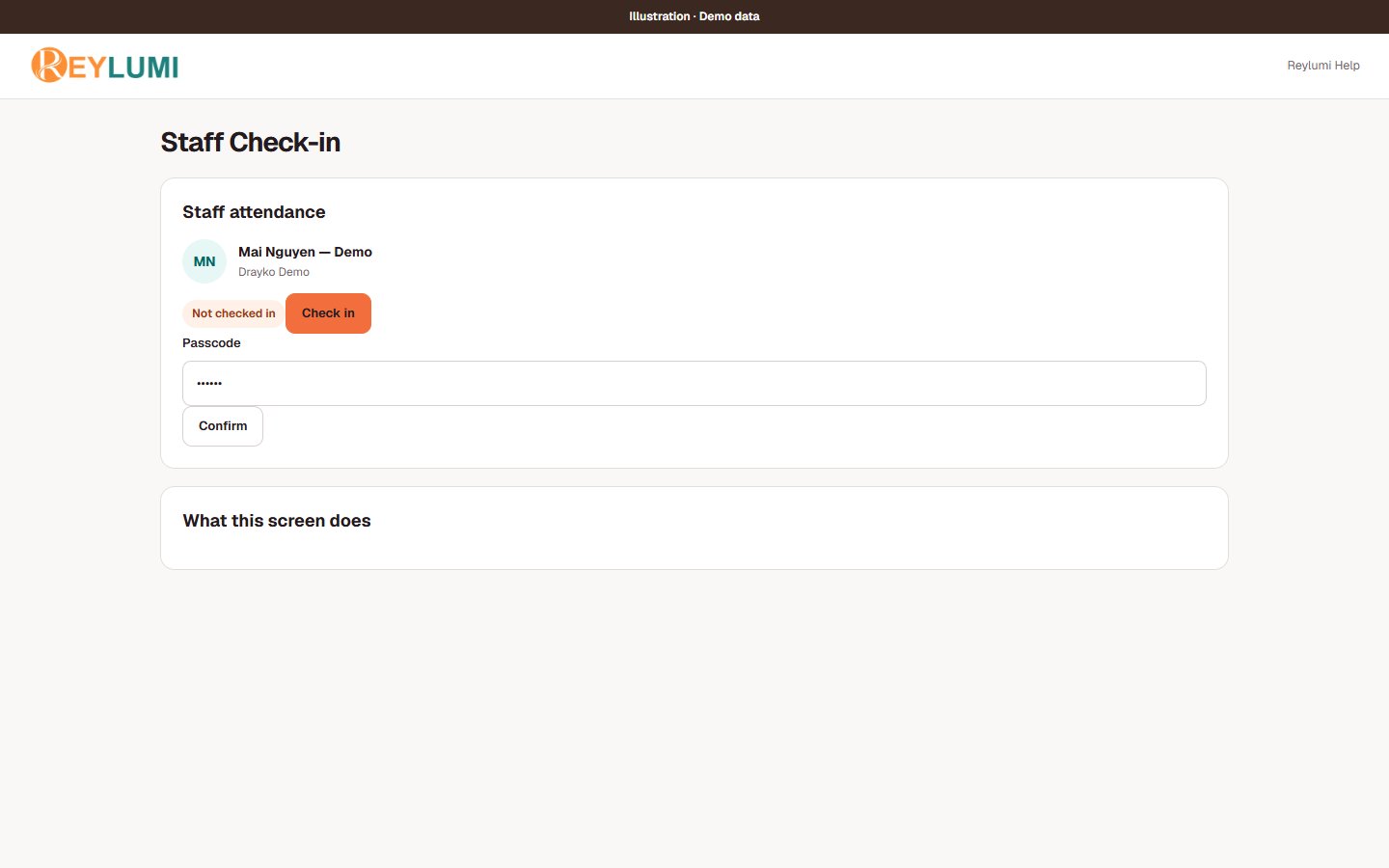
POS Check-in is for staff attendance. Select the intended staff member and the available attendance action, enter the staff passcode when requested, then Confirm. Customer arrivals and customer tickets use their booking or POS workflow, not this staff check-in screen.
Review the ticket
Open the ticket and check services, staff, quantities, prices and any adjustments before completing it.
Record the correct payment
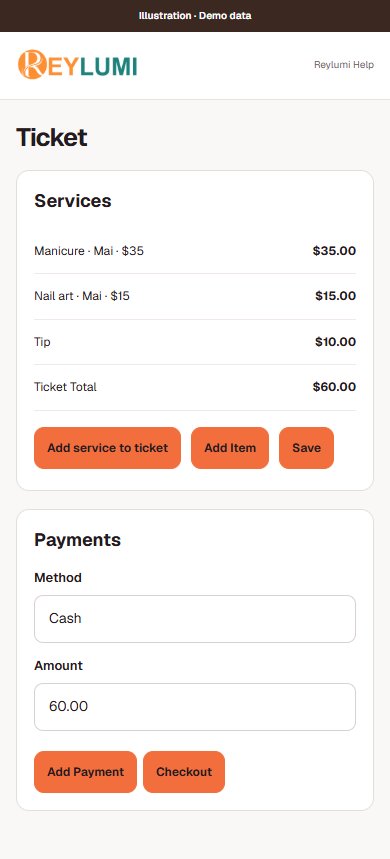
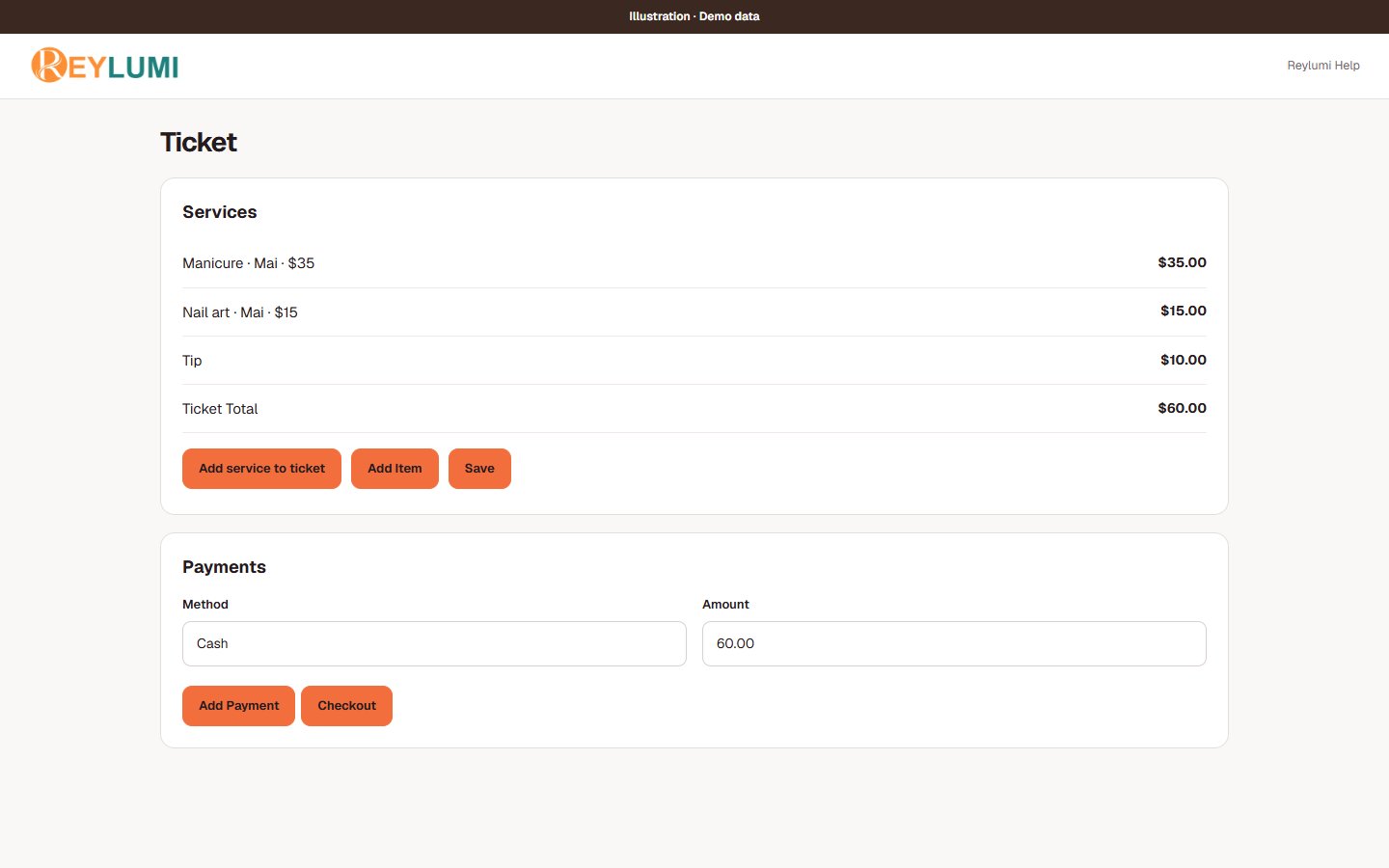
On the ticket detail page, Payments → Add Payment records the selected Method and Amount. For an external card terminal, verify the transaction there first. Once the ticket meets checkout requirements, including full payment, use Checkout and check the result.
Confirm completion before retrying
Check that the ticket has closed and the recorded payment matches the actual payment. If the response is slow, inspect the ticket and terminal result before attempting another charge or payment entry.
Detailed walkthroughs
Review services, staff and an external card payment
- Open the correct ticket. Under Services, use Add service to ticket → Add Item, then check each line’s assigned staff, quantity and price. Save any allowed edits before payment.
- Review discount, tax and tip controls if applicable. Check the final amount with the customer; a tip is separate from the service price.
- For an external card terminal, charge on that terminal and confirm success there. In the ticket detail page, open Payments, select the matching Method and Amount and choose Add Payment.
- For multiple actual payments, add a separate payment entry for each method and amount on the ticket detail page. Confirm the remaining balance before Checkout.
- Use Checkout only when its requirements are satisfied. Confirm the ticket is closed and inspect its payment entries before leaving the screen.
Check the result: Ticket total, recorded payments and the actual cash/terminal transactions agree.
Example: A $50 service plus a $10 tip totals $60 before any other charges. If $20 was cash and $40 was charged successfully on the terminal, record $20 Cash and $40 Credit Card, not two $60 payments.
If something goes wrong
- A POS card entry records payment; it does not itself charge the external terminal. If the terminal timed out, check its transaction history before charging again.
- Wrong amount or method after closing: use the permitted correction workflow or ask the owner. Do not create another sale to cancel the first one.
Details and common questions
- This guide does not describe an integrated card terminal. Recording a card payment in POS is not proof that an external terminal charged the card.
Screen illustrations