

Owner Tips: run your first salon day
Install POS, serve a customer, understand the money and reconcile the day.
Before you start
Use an Owner account with access to the intended salon. Prepare active services and staff, a Windows computer or supported browser, and your separate card terminal if you accept cards.
Open POS settingsStep by step
Before opening
Open the correct salon, check staff and services, review bookings and syncing.
For each customer
Check the customer, staff, services and total; collect the payment, record it once and verify Checkout.
Before leaving
Sync tickets, count actual collections, compare the terminal report and save the correct business-day report.
Detailed walkthroughs
1. Open POS for the day
- Open POS Settings → Install POS & customer display. On a Windows computer or touchscreen, choose Download Windows app when available. Share link can send the download address to the intended computer.
- Open the downloaded .exe and follow setup. Verify the publisher before approving the Windows prompt, then open the POS app.
- In POS settings → Staff access, an authorized manager creates an active POS ID and passcode and selects Allowed actions. Sign into the POS app with those credentials.
- Alternatively choose Run Portable in browser. Confirm the salon, then check the sync indicator before daily work. Internet is required for sign-in and syncing.
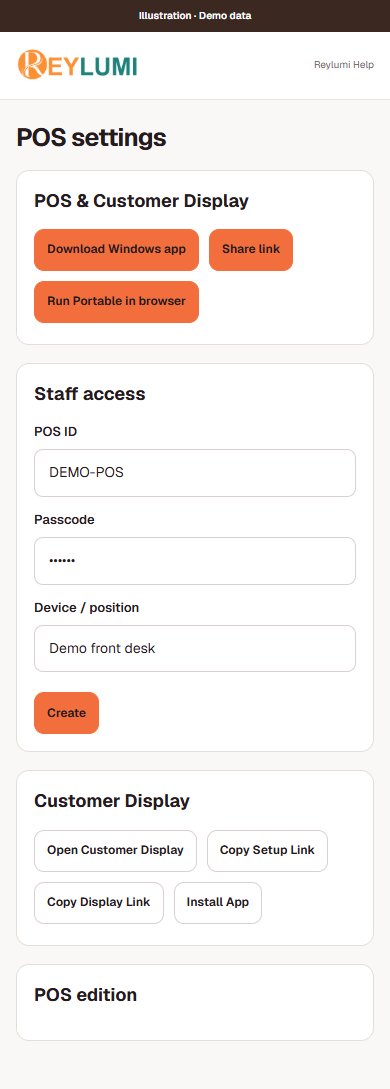
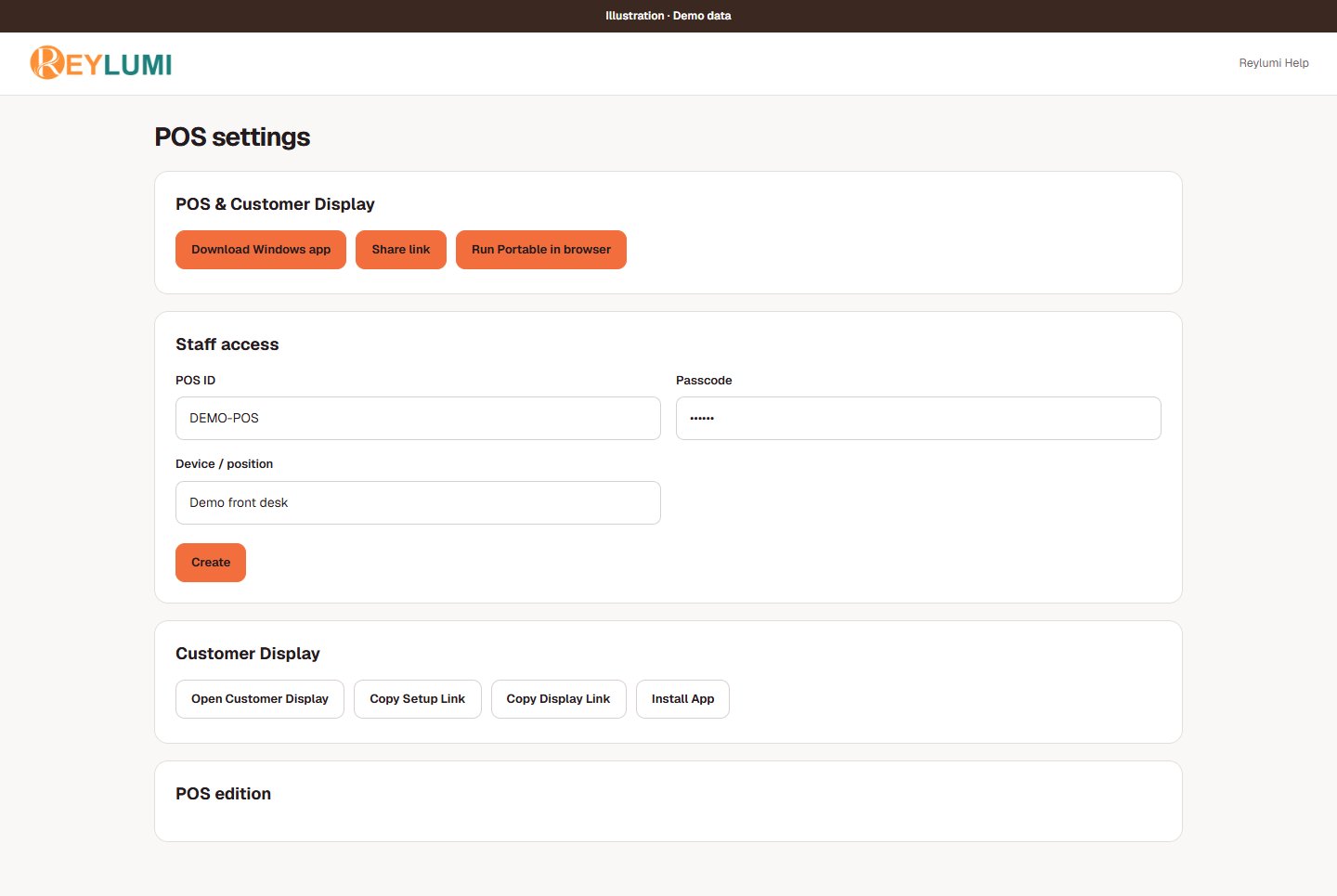
Check the result: The correct salon opens and the POS ID can perform only its allowed actions.
Example: A reception POS ID can be limited to the actions needed at the desk; the owner keeps a separate personal management account.
If something goes wrong
- Windows download unavailable: use the offered browser option or contact support. The Windows installer is not an iPad application.
- Do not clear browser/app data or reinstall while tickets are waiting to sync. Keep the same device and review the sync status first.
Prepare the team and menu before opening
- Check the salon name on POS. Have staff use POS Check-in for their own attendance and verify the intended staff profile.
- In Services, check the active menu, price and duration. In Staff, check who is active. For online appointments, also review eligible Booking staff and working availability.
- Review today’s bookings and the POS sync indicator. Confirm the external card terminal is ready before serving customers.
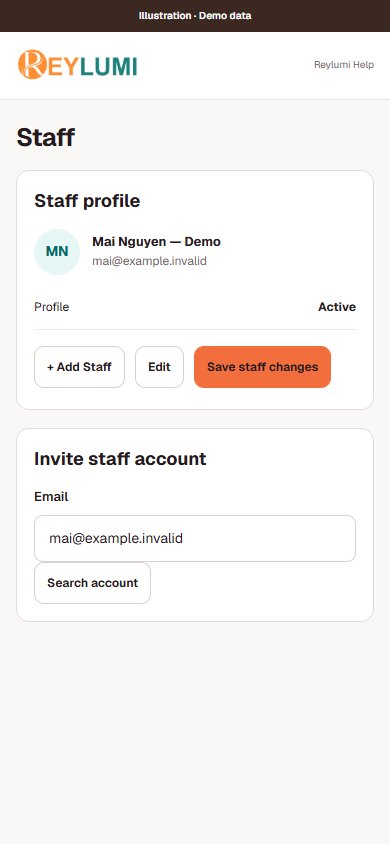
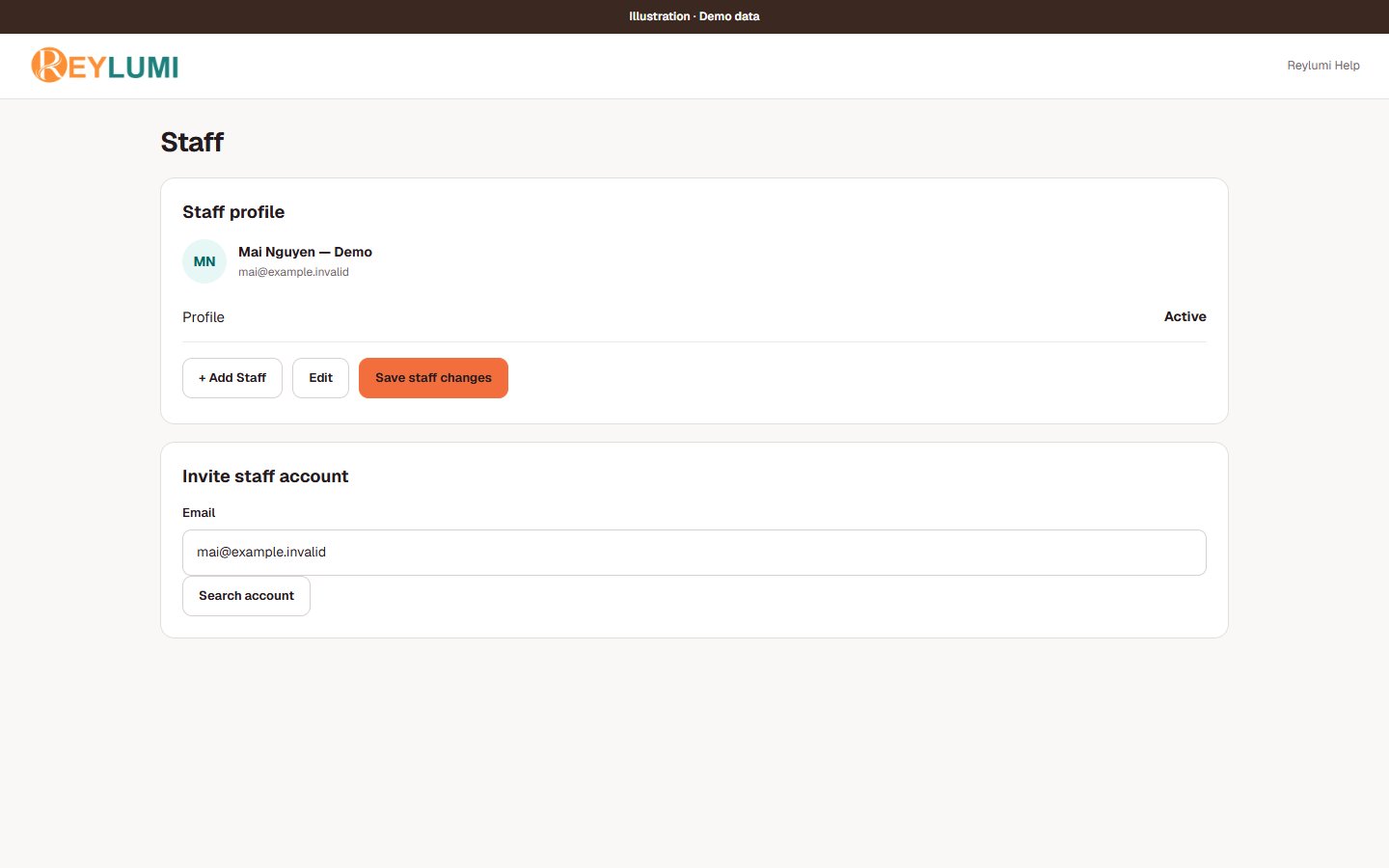
Check the result: You can select the correct staff and service, and today’s bookings are visible.
Example: Mai is working today. Classic manicure is active at $35 for 45 minutes; Mai is assigned only to services she can perform.
If something goes wrong
- Online booking availability and staff attendance are different. Checking in does not automatically create online booking hours.
Build and review a customer ticket
- Open the intended customer’s ticket from the POS or booking workflow. Check the customer and salon before adding services; do not use staff Check-in as customer check-in.
- On the ticket detail page, choose Add service to ticket → Add Item. Check the assigned staff for each line, quantity and price, then Save allowed changes.
- Review discount, tax and Tip Value if applicable. Confirm Ticket Total with the customer before collecting payment.
- Record the actual payment in Payments → Add Payment. Check that the balance is fully paid, use Checkout and verify the closed result.
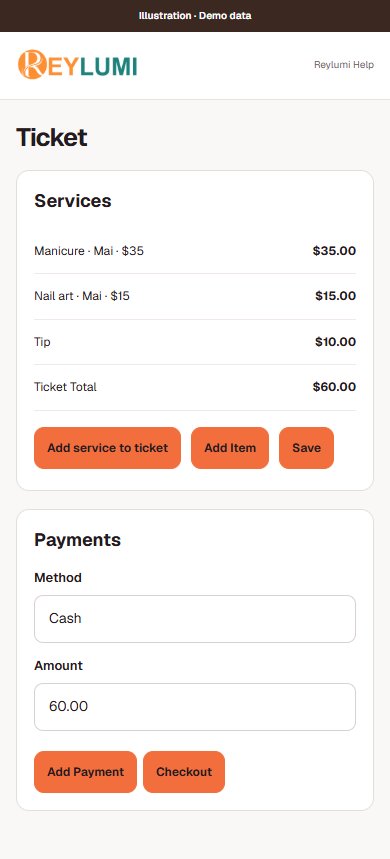
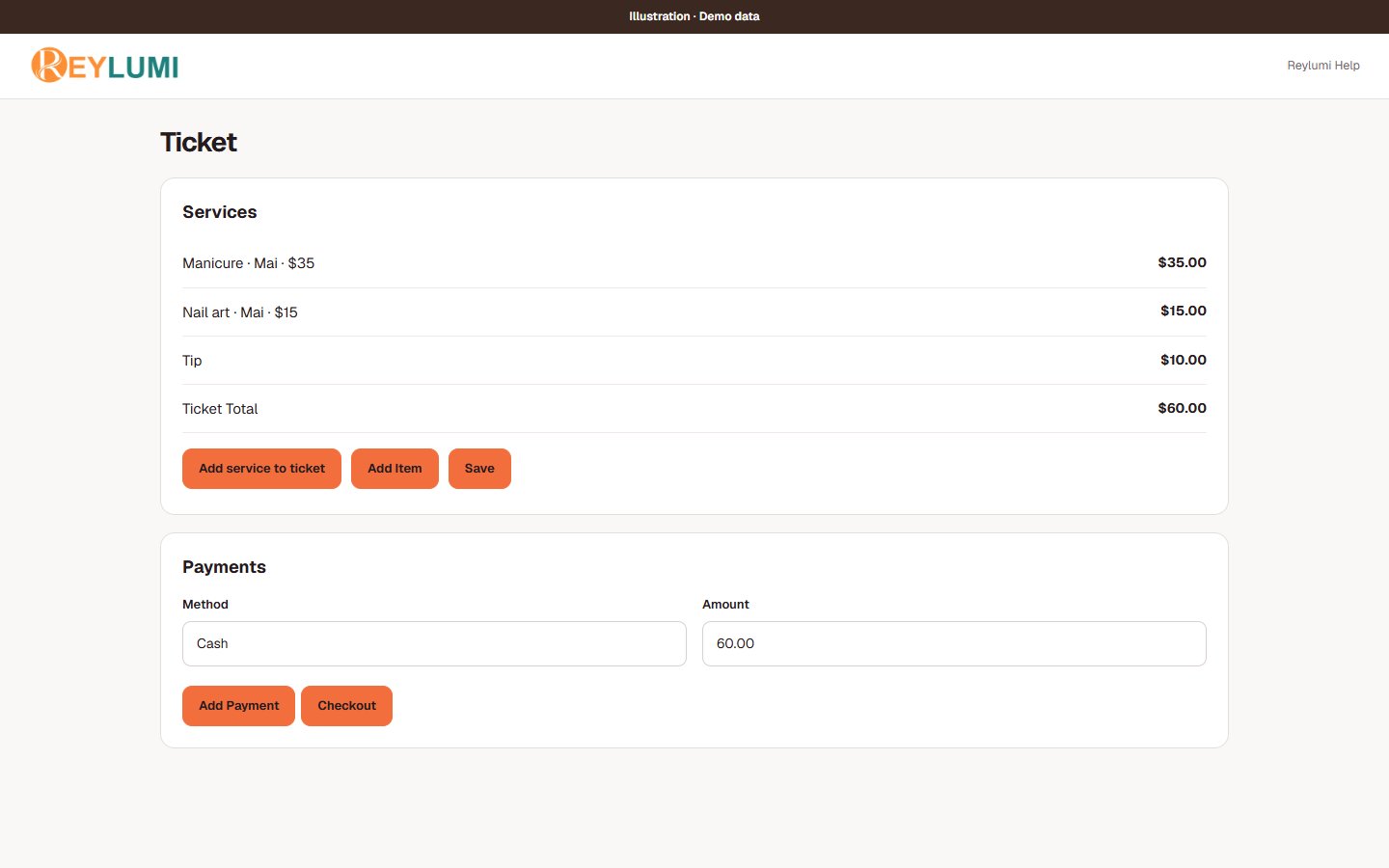
Check the result: The closed ticket contains the correct customer, staff, services and payment entries.
Example: Classic manicure $35 + Nail art $15 + tip $10 = $60 if no other tax or discount applies. The service lines total $50; the tip remains $10.
If something goes wrong
- If Checkout is unavailable, check required staff assignments, ticket details and the outstanding amount. Do not add a second payment if the first one is already recorded.
Understand where each amount goes
- Service lines contribute to service sales. Tips are recorded separately. Cash and Credit Card describe how the customer paid the total; they are not extra sales on top of the ticket.
- The assigned staff and their configured pay rules determine calculated commission or wages. Review Payroll → Staff Income for the breakdown, rather than treating all customer cash as staff pay.
- Keep actual staff payments separate from the calculation. Mark Paid records the saved statement status; it does not transfer cash or money from a bank.
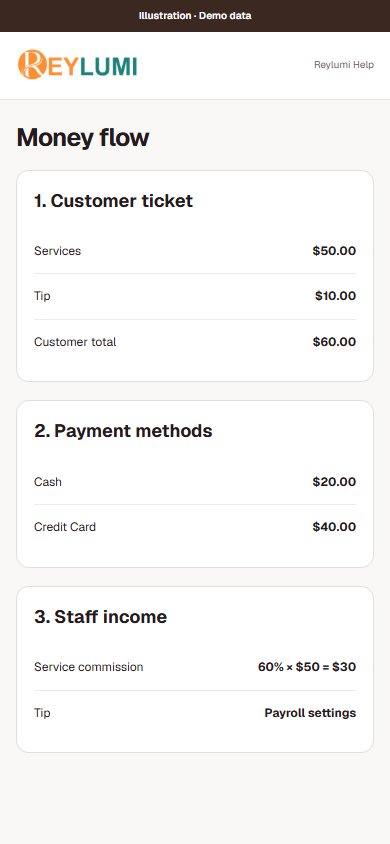
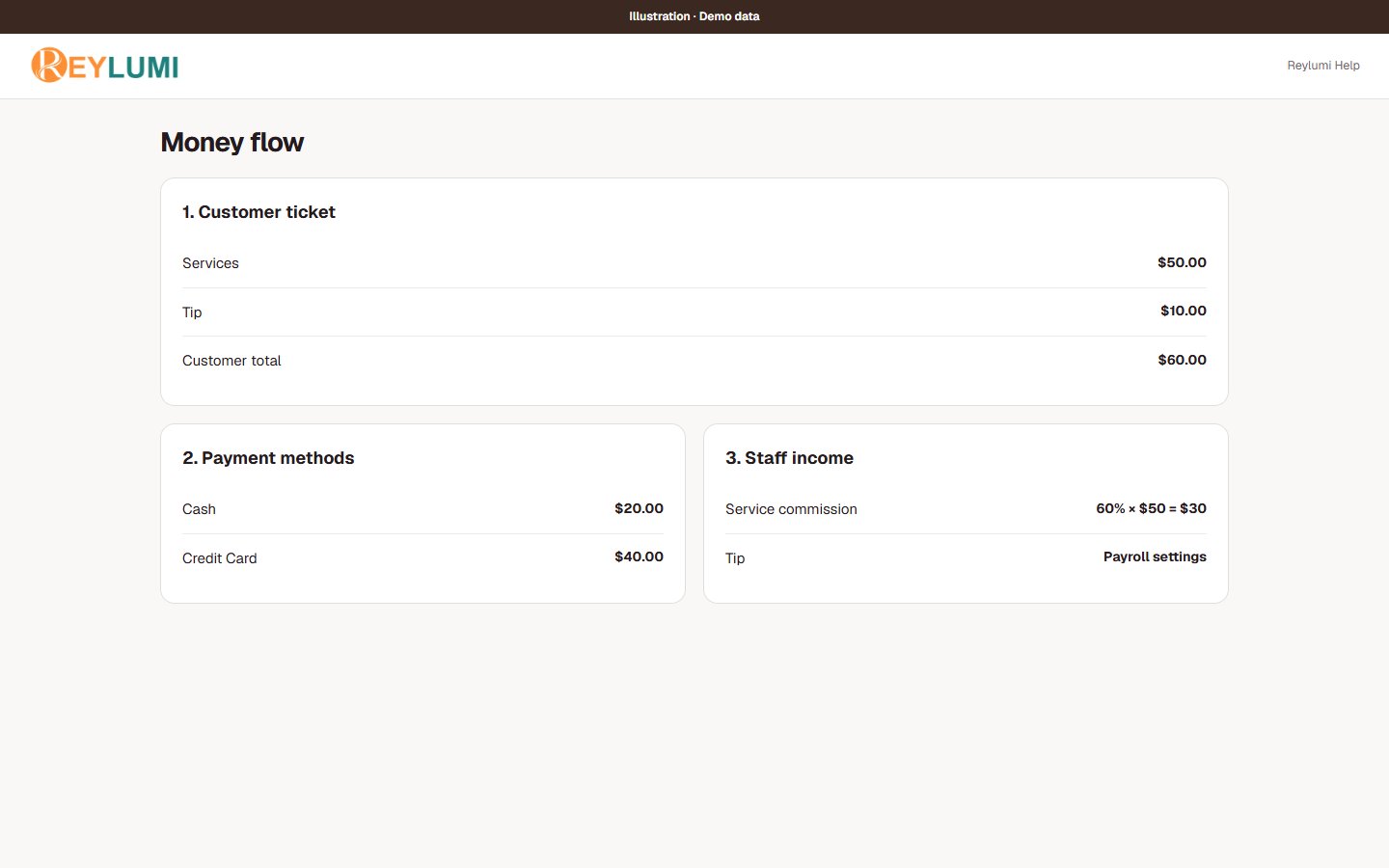
Check the result: You can explain service sales, tips, customer payment methods and staff income as separate amounts.
Example: For a $50 service total and $10 tip, the customer pays $60. At a 60% service commission, the service commission is $30 before other pay rules. Tip treatment follows the configured payroll rules.
If something goes wrong
- Do not add ticket total and payment total together as revenue: they describe the same collection. Do not assume every tip is paid out immediately.
Use your own card terminal with POS
- Check the final amount with the customer. Enter the intended charge on your external terminal and follow that terminal’s payment process.
- Confirm the terminal reports success. On the Reylumi ticket detail page, choose the matching Method, such as Credit Card or Debit Card, enter only the amount successfully collected and choose Add Payment.
- For cash plus card, record each actual amount separately. Keep the terminal receipt or reference available for end-of-day reconciliation, then complete Checkout when fully paid.
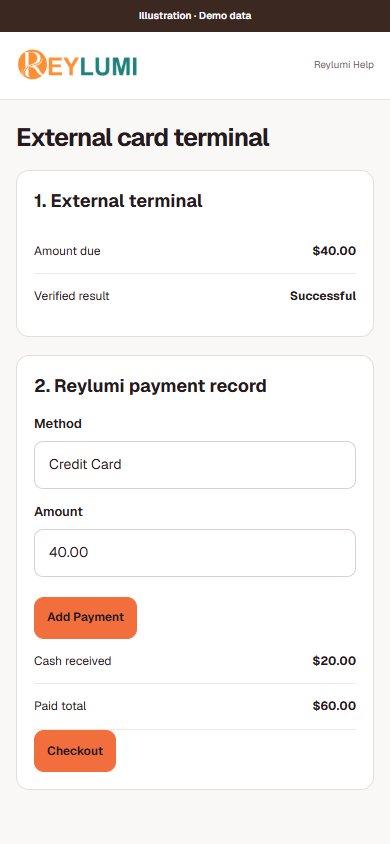
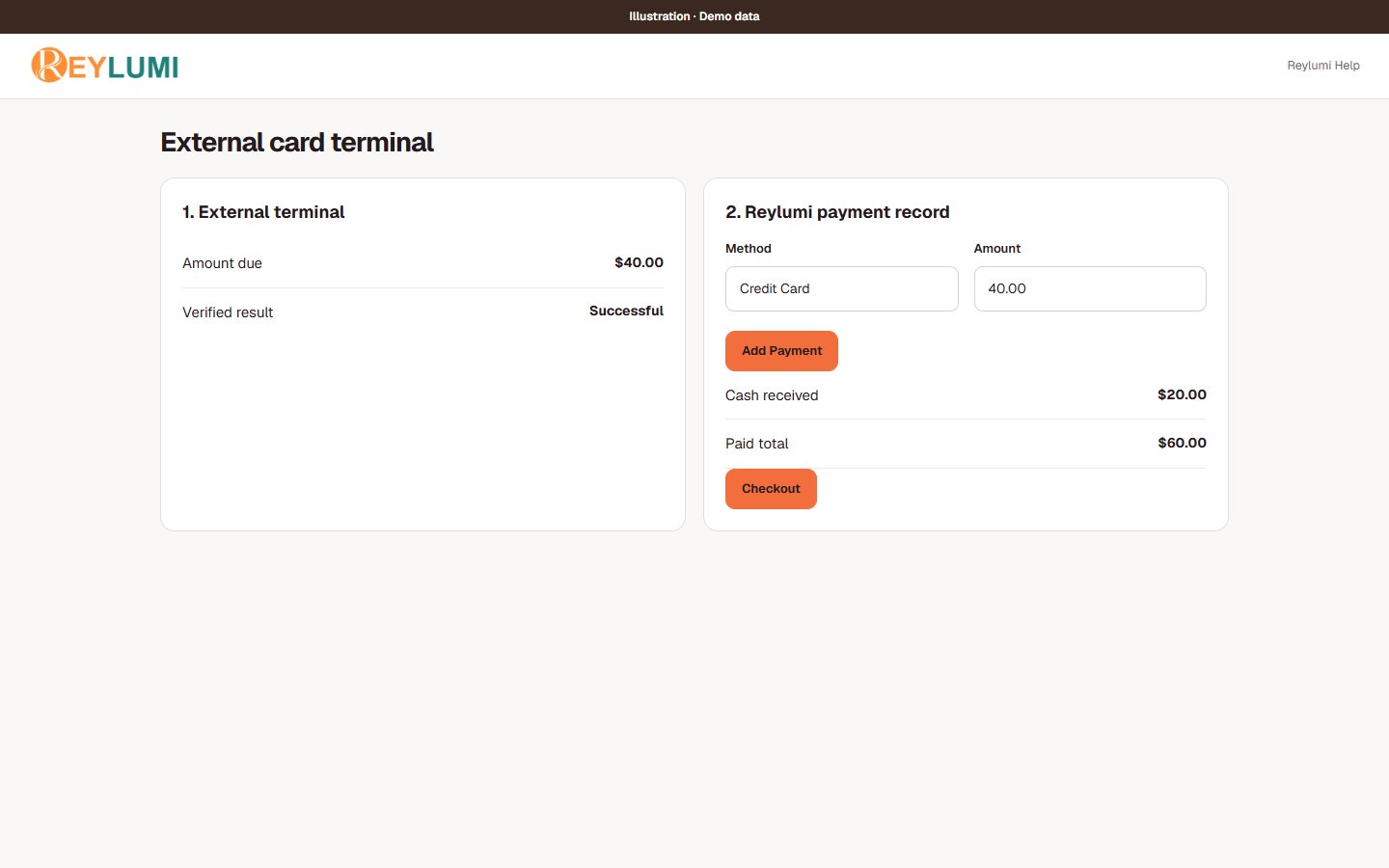
Check the result: The terminal charge and the POS card entry agree; the ticket has no remaining unpaid balance.
Example: For a $60 ticket paid $20 cash and $40 by credit card, record $20 Cash and $40 Credit Card after the $40 terminal charge succeeds.
If something goes wrong
- If a terminal response is unclear, inspect its transaction history before retrying. Entering Add Payment in Reylumi does not charge that terminal.
- A POS correction or cancellation does not prove that an external card refund happened. Verify any actual refund with the terminal provider.
6. Close and reconcile the day
- Open POS → Report and select the business date. Check that saved tickets have synced; pending uploads can make the report incomplete.
- In Closing Inputs, enter actual Cash, Credit Card and Other collections for that date. Use the terminal’s matching business-day transactions for card collections, not an unrelated bank payout.
- Review Actual Total, Expected total and Difference in Reconciliation. Record an explanation in Note when something needs checking, then choose Save.
- Wait for Saved and reopen the same date to verify the entries. If the date is locked, follow the main report correction workflow available to your role.
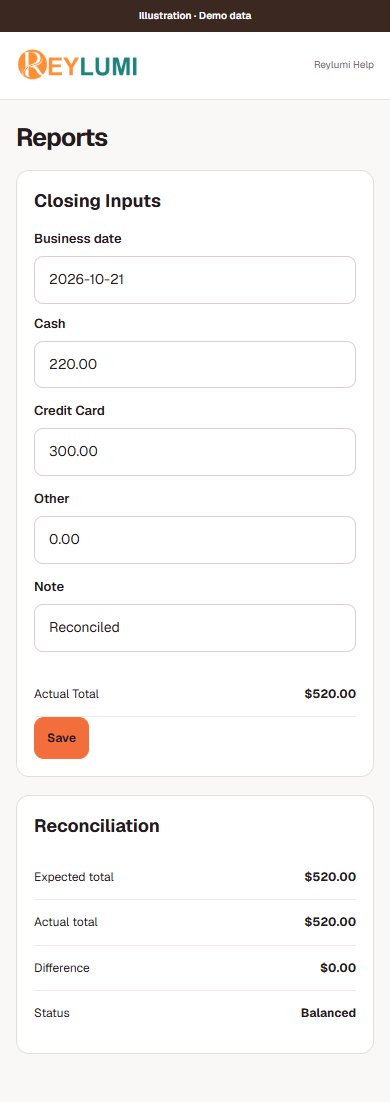
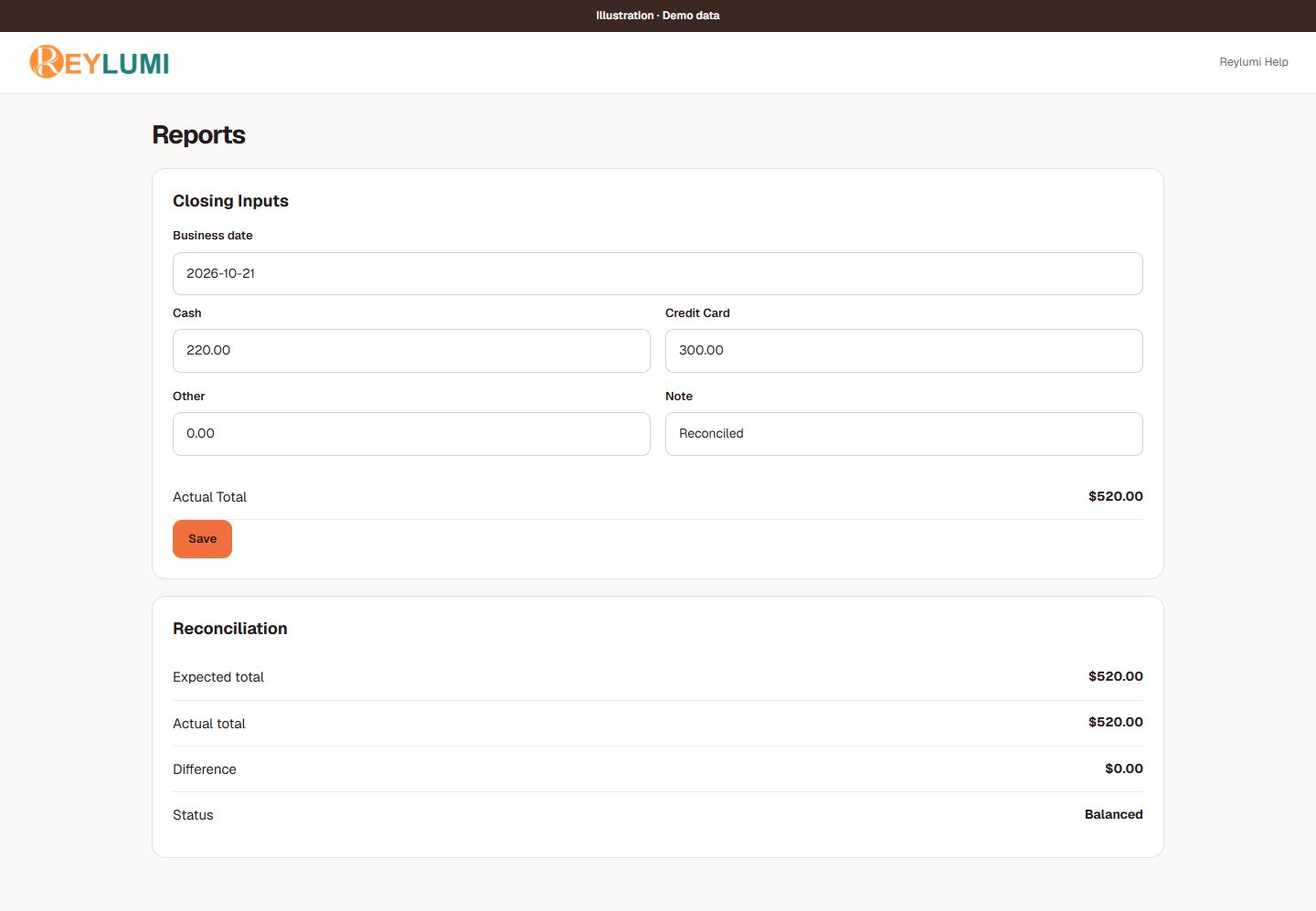
Check the result: Saved closing amounts remain after reload, and any difference has been investigated rather than hidden by changing a sale.
Example: Expected total is $520. Actual Cash $220, Credit Card $300 and Other $0 give Actual Total $520 and Difference $0. Opening cash kept in the drawer is not new sales collected today.
If something goes wrong
- Unsynced tickets: reconnect and review the sync indicator before final comparison. A local draft is not the saved report.
- Closing amounts changed on another screen: review Use saved amounts and Keep my entries for review. Compare values before saving again.
- Card fees, refunds and settlement timing can make a bank deposit different from gross terminal collections. Review the terminal statement separately.
7. Review remotely
- Sign in with your Owner account and select the salon in My place. Open Bookings, Today or Reports for the task you need.
- Check the business date, period and status filters before comparing numbers with the reception POS. Open a specific booking or ticket to investigate a difference.
- If a view looks old, reload and confirm the POS has synced. Ask the person at the salon to verify physical cash or an external terminal result when needed.
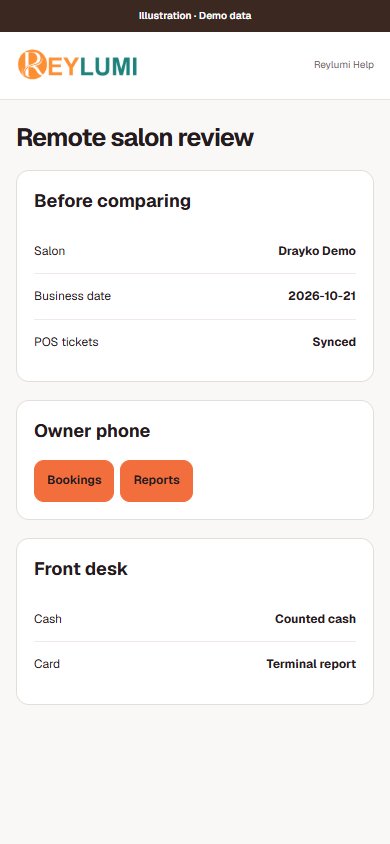
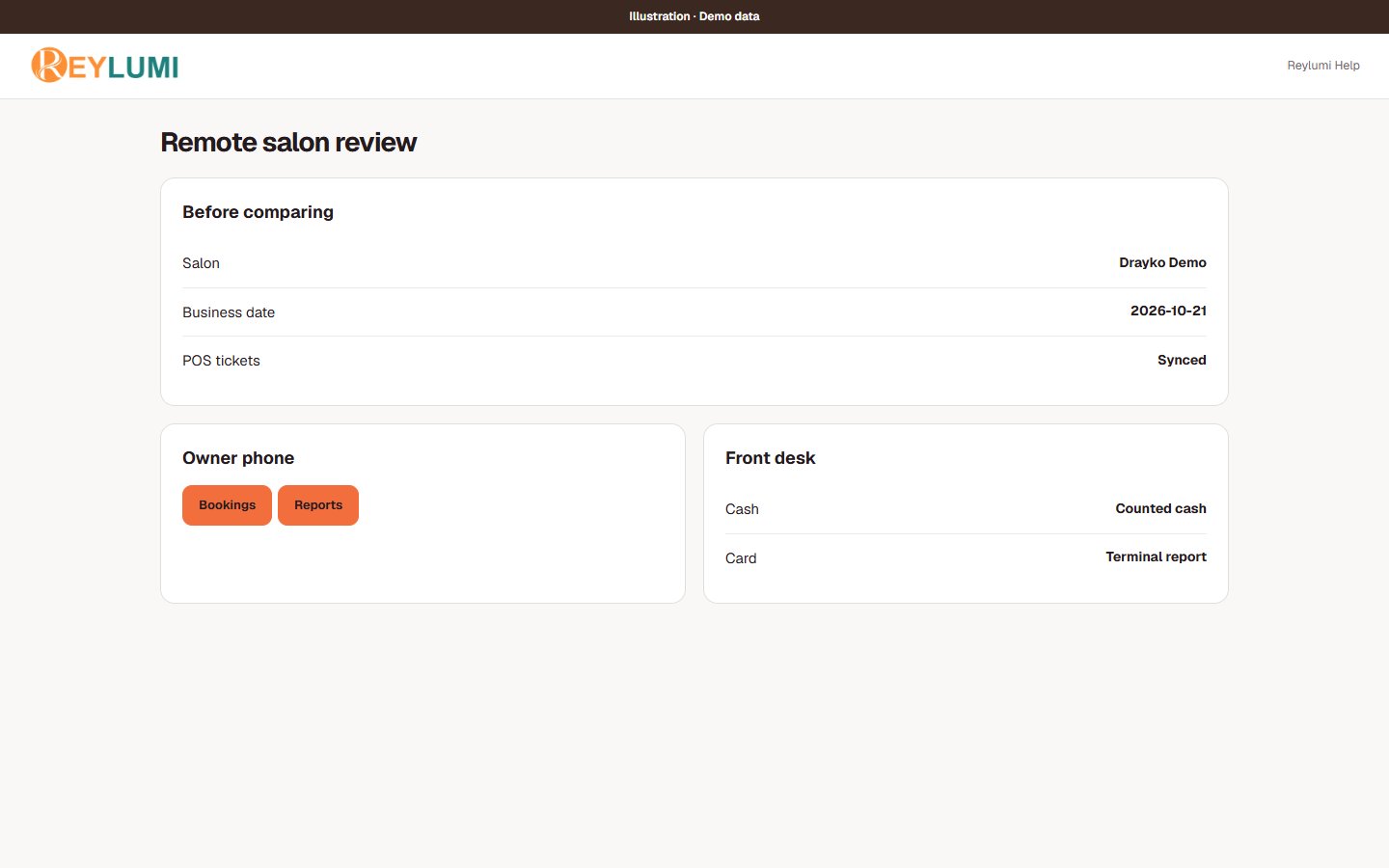
Check the result: The same salon and date show consistent saved records across devices.
Example: The owner checks today’s card entries on a phone, then compares them with the receptionist’s terminal report for that same date.
If something goes wrong
- A remote report cannot confirm how much cash is physically in the drawer or whether an external terminal actually charged a card.
8. Resolve common mistakes
- Check account, salon, date and permissions first. For a staff portal, confirm the active linked staff profile; for a POS device, confirm its POS ID and allowed actions.
- Check the saved outcome: booking list for an appointment, ticket/payment entries for checkout, My Applications for a connection and the saved period for payroll.
- For device sync problems, keep the device data, reconnect and inspect the sync indicator. For conflicting edits, compare the latest saved record before choosing which values to keep.
- Open Help & support from the affected screen. Include the task, page, time, exact error and what you expected. Hide private contact, payroll and setup-link information in screenshots.
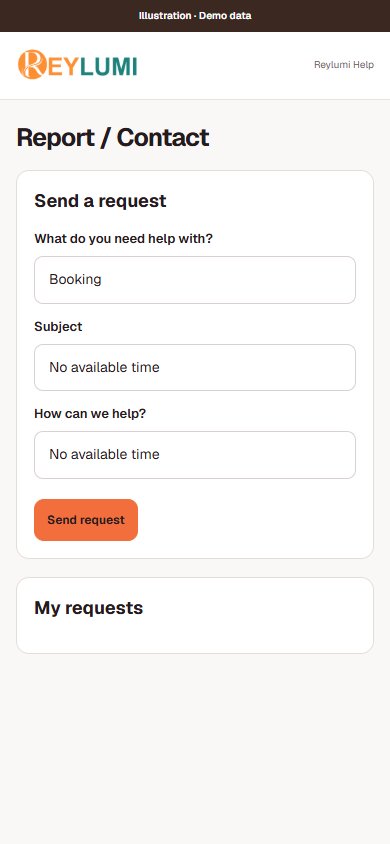
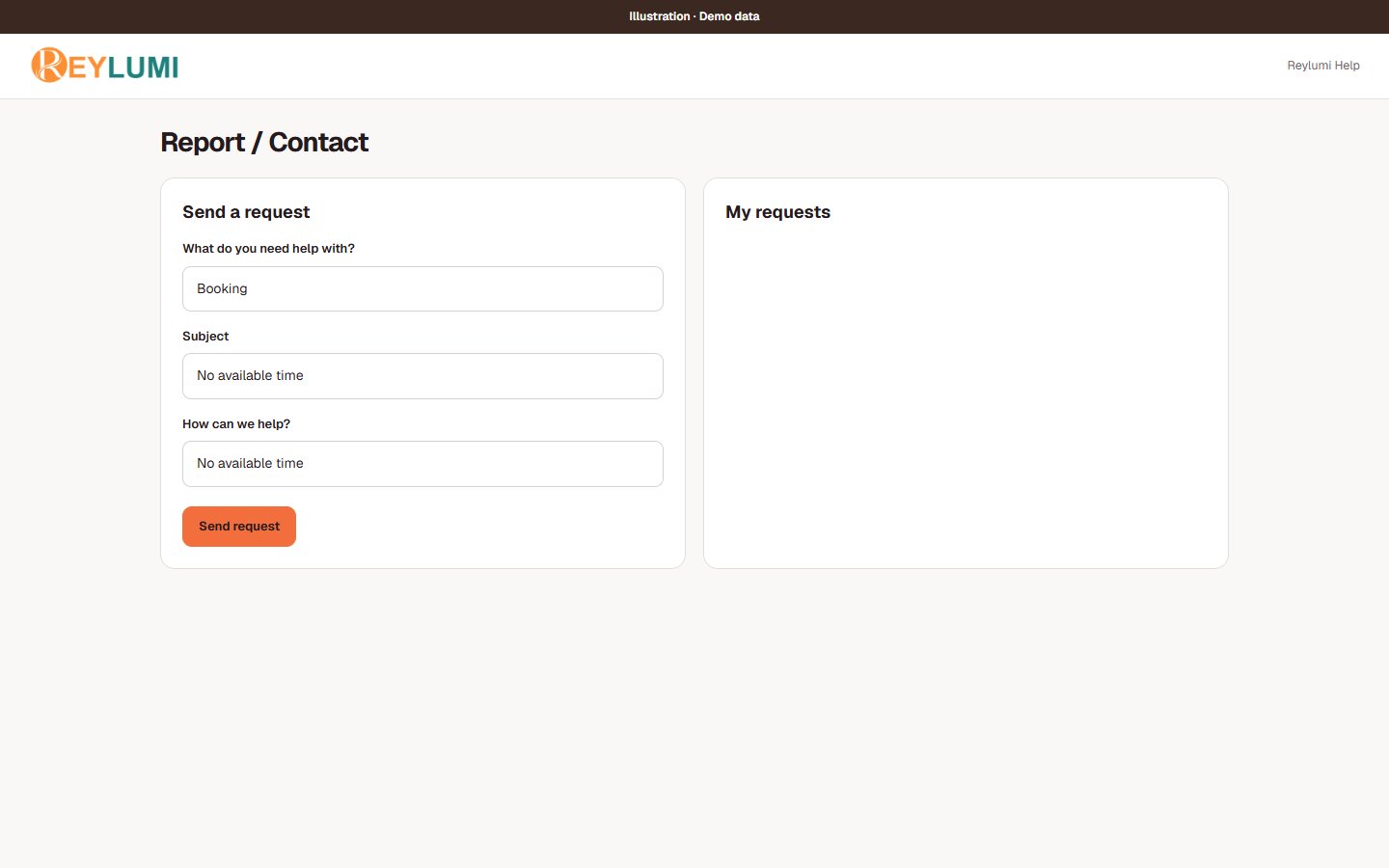
Check the result: Support receives enough context to locate the failed step without passwords, codes or unrelated private records.
Example: Useful report: “Create Salon → Drayko Demo → Could not check existing salons, around 10:15; no salon appeared afterward.”
If something goes wrong
- Do not repeatedly charge a card, create duplicate salons or submit the same booking while the original outcome is uncertain.