
Share profiles, posts and booking links
Present your work and guide customers to an available booking flow.
Before you start
Profile editing and salon publishing depend on the account, salon connection and permissions.
Open your beauty profileStep by step
Review the profile
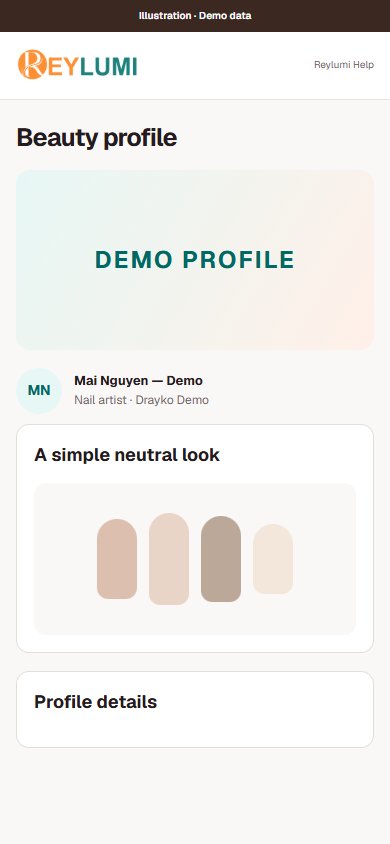
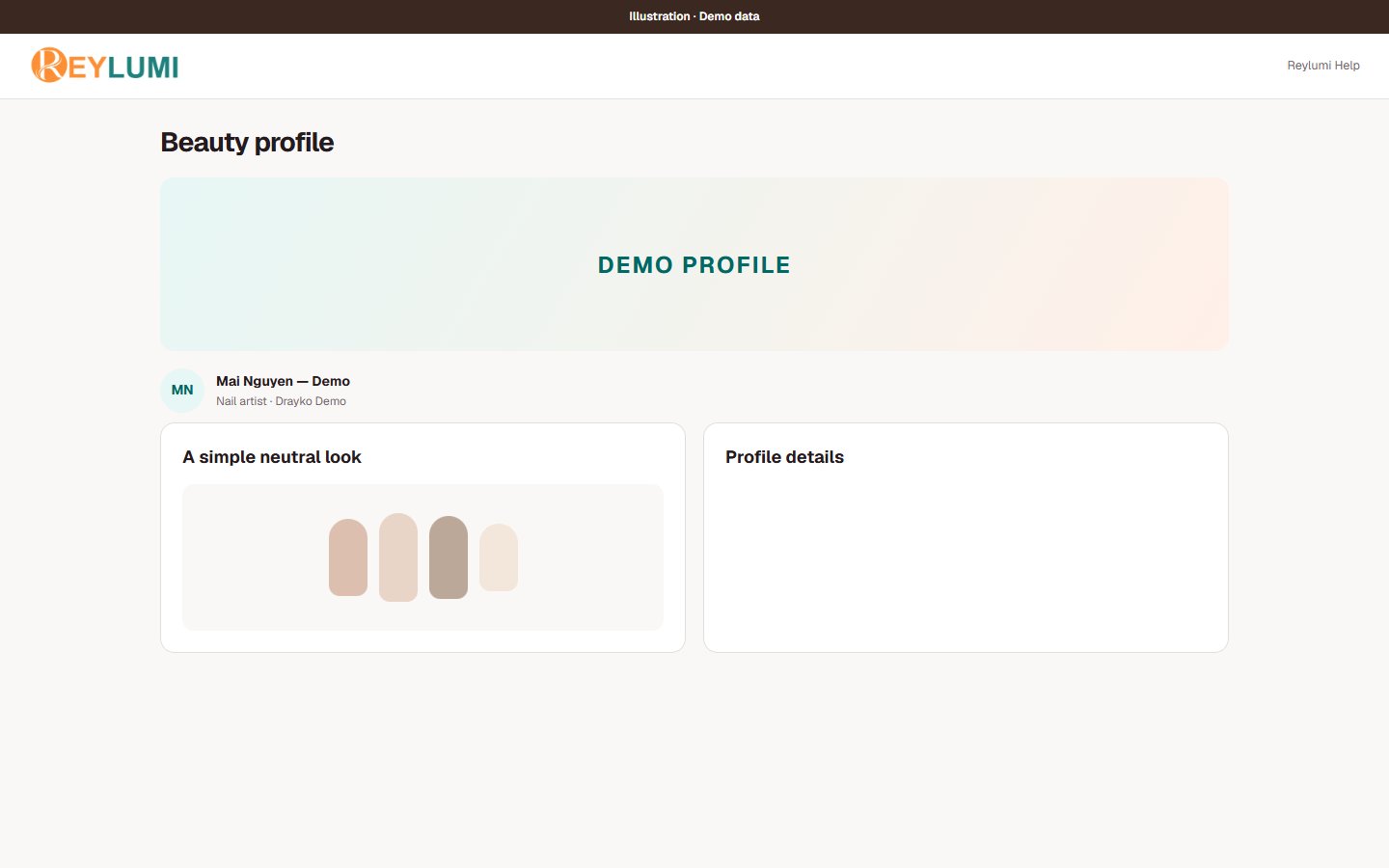
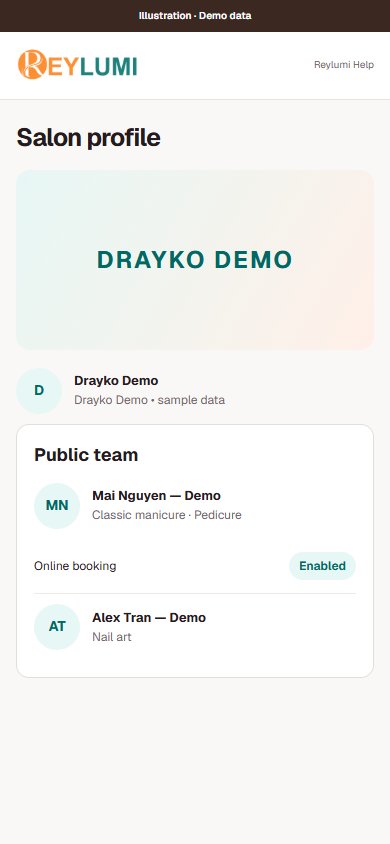
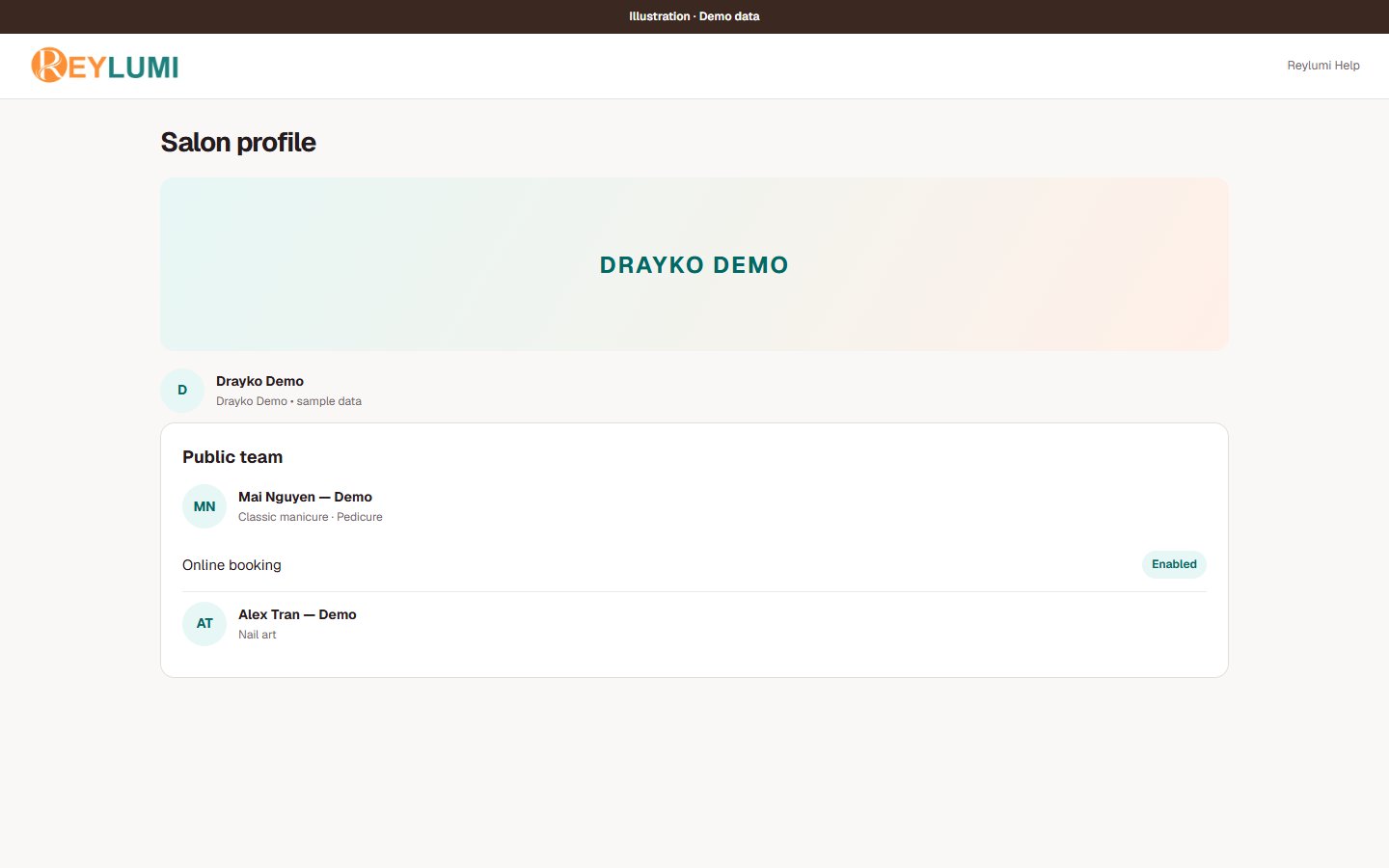
Review your personal beauty profile or the salon profile you manage. Check public names, images and the team shown to customers.
Publish only permitted content
Use the post tools available to your account. Obtain permission for customer photos and review any salon publication approval requested by the app.
Check the shared link
Open the public profile and its available booking link to confirm the correct salon, service or staff context. A shared post does not itself confirm an appointment.
Detailed walkthroughs
Edit a profile and publish a post
- Open your Beauty page and use Edit profile for your public profile information. Review the visible name, bio and photos before saving.
- Open the post composer. Choose Photo or Before & After, add the requested images and write a Caption. Use only images you have permission to publish.
- If you attribute the work to a salon, check the recent visit suggestion or use Choose another salon. Verify the Salon and Professional before submitting.
- Wait for the publishing result, then review My posts and the public view. A Before & After post can still show pending salon approval or visit verification.
Check the result: The intended photos, caption and attribution appear, with the actual approval status shown.
Example: Mai posts two permitted nail photos as Before & After and selects Drayko Demo. Pending salon approval does not mean the salon has endorsed the post.
If something goes wrong
- An upload or publish is still running: wait for its result before closing or posting again. If it fails, check My posts before retrying.
- Sharing a profile or post does not book an appointment; customers must complete the Book flow separately.
Screen illustrations