
Review reports and manage remotely
Check salon activity from a phone or desktop using the same salon context.
Before you start
Reports require the relevant permissions. A locked report can restrict edits or require a correction workflow.
Open ReportsStep by step
Check the salon and date
Open Reports or the POS report workspace, then confirm the salon and reporting day or period before comparing totals.
Reconcile before closing
Compare ticket and payment records with the actual cash and external payment results. Review the close or correction controls available to your role.
Use the mobile workspace
On a phone, open the same salon to review bookings, Today and reports. If information looks stale, reload and check the selected salon and date before taking action.
Detailed walkthroughs
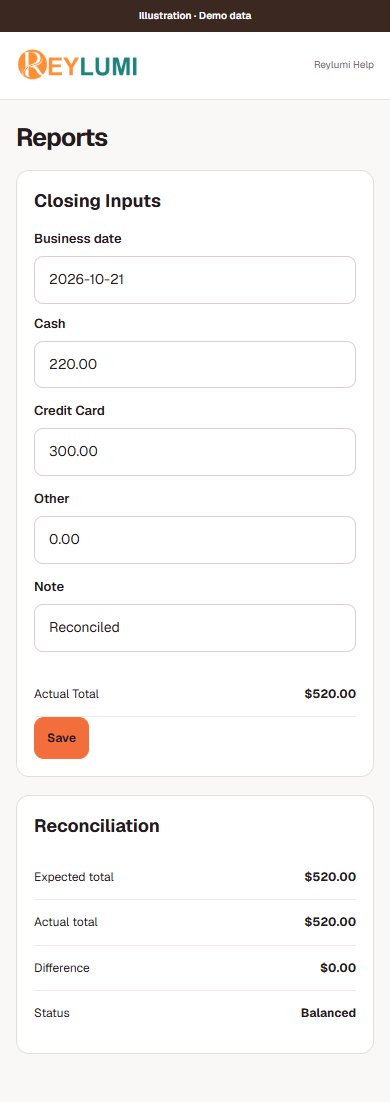
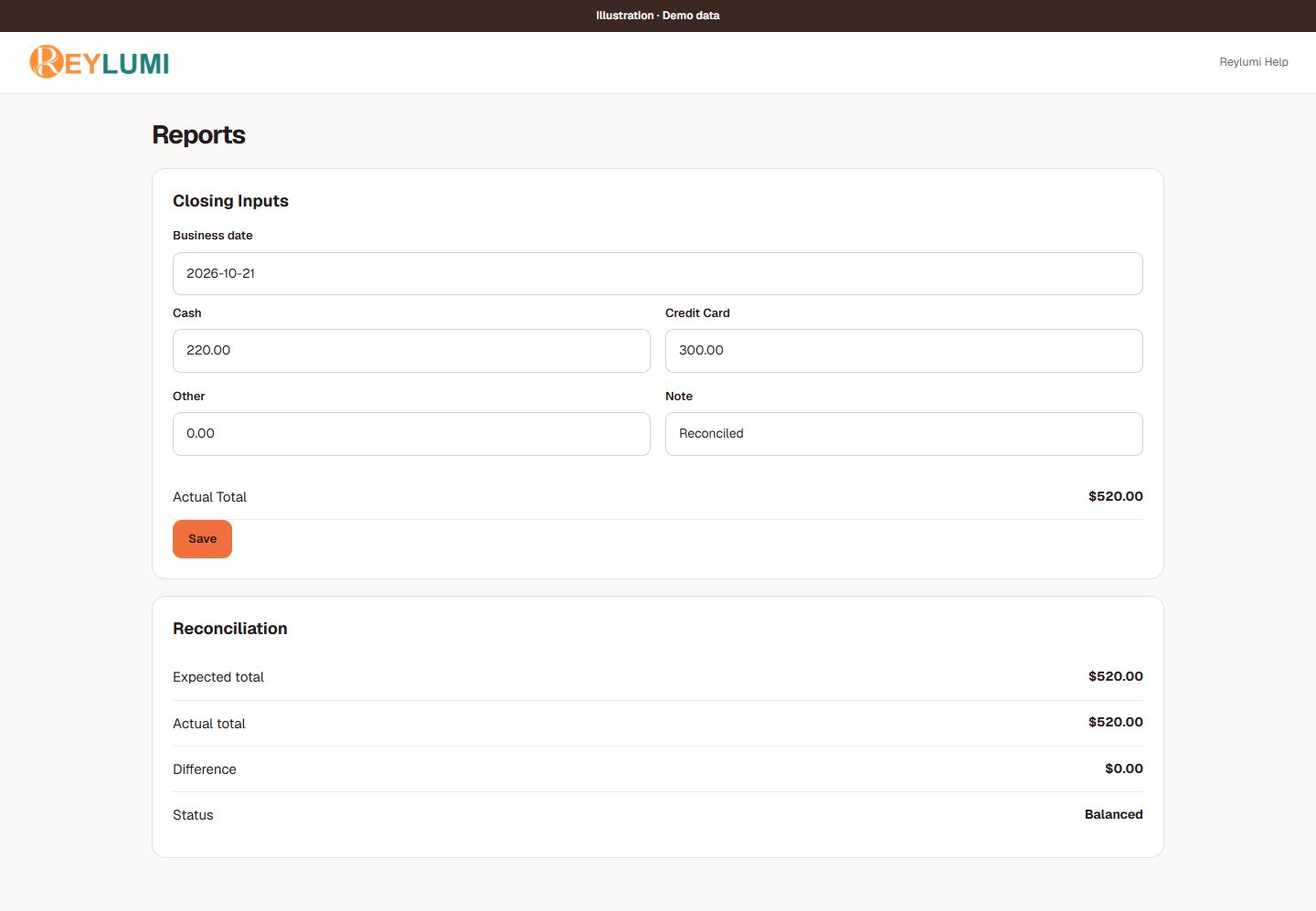
Enter actual collections and reconcile the day
- Open POS → Report and select the business date. Check that saved tickets have synced; pending uploads can make the report incomplete.
- In Closing Inputs, enter actual Cash, Credit Card and Other collections for that date. Use the terminal’s matching business-day transactions for card collections, not an unrelated bank payout.
- Review Actual Total, Expected total and Difference in Reconciliation. Record an explanation in Note when something needs checking, then choose Save.
- Wait for Saved and reopen the same date to verify the entries. If the date is locked, follow the main report correction workflow available to your role.
Check the result: Saved closing amounts remain after reload, and any difference has been investigated rather than hidden by changing a sale.
Example: Expected total is $520. Actual Cash $220, Credit Card $300 and Other $0 give Actual Total $520 and Difference $0. Opening cash kept in the drawer is not new sales collected today.
If something goes wrong
- Unsynced tickets: reconnect and review the sync indicator before final comparison. A local draft is not the saved report.
- Closing amounts changed on another screen: review Use saved amounts and Keep my entries for review. Compare values before saving again.
- Card fees, refunds and settlement timing can make a bank deposit different from gross terminal collections. Review the terminal statement separately.
Review the salon from your phone
- Sign in with your Owner account and select the salon in My place. Open Bookings, Today or Reports for the task you need.
- Check the business date, period and status filters before comparing numbers with the reception POS. Open a specific booking or ticket to investigate a difference.
- If a view looks old, reload and confirm the POS has synced. Ask the person at the salon to verify physical cash or an external terminal result when needed.
Check the result: The same salon and date show consistent saved records across devices.
Example: The owner checks today’s card entries on a phone, then compares them with the receptionist’s terminal report for that same date.
If something goes wrong
- A remote report cannot confirm how much cash is physically in the drawer or whether an external terminal actually charged a card.
Screen illustrations