
Connect as a staff member
Link your account to the correct salon and find your work area.
Before you start
The salon must have an active staff profile linked to your account before staff work tools are available.
Open staff connectionsStep by step
Review your connection
Open staff connections to review the connection options available to your account. If the owner sends an invitation, open it while signed in to the intended account.
Confirm the salon
Check the salon and staff profile before accepting a connection. Ask the owner to correct a wrong or inactive profile.
Open Staff Daily
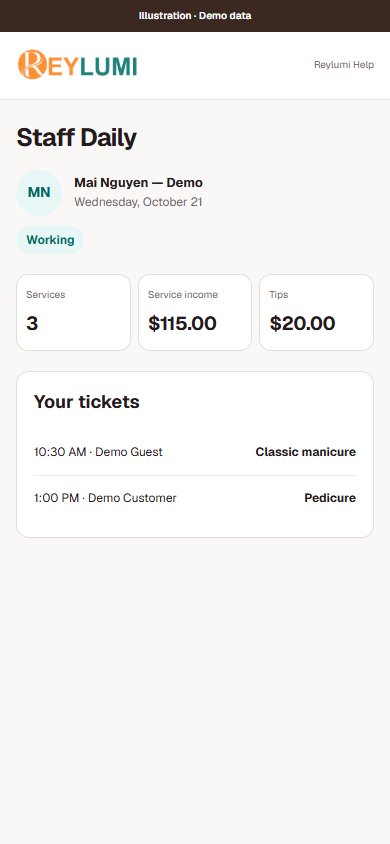
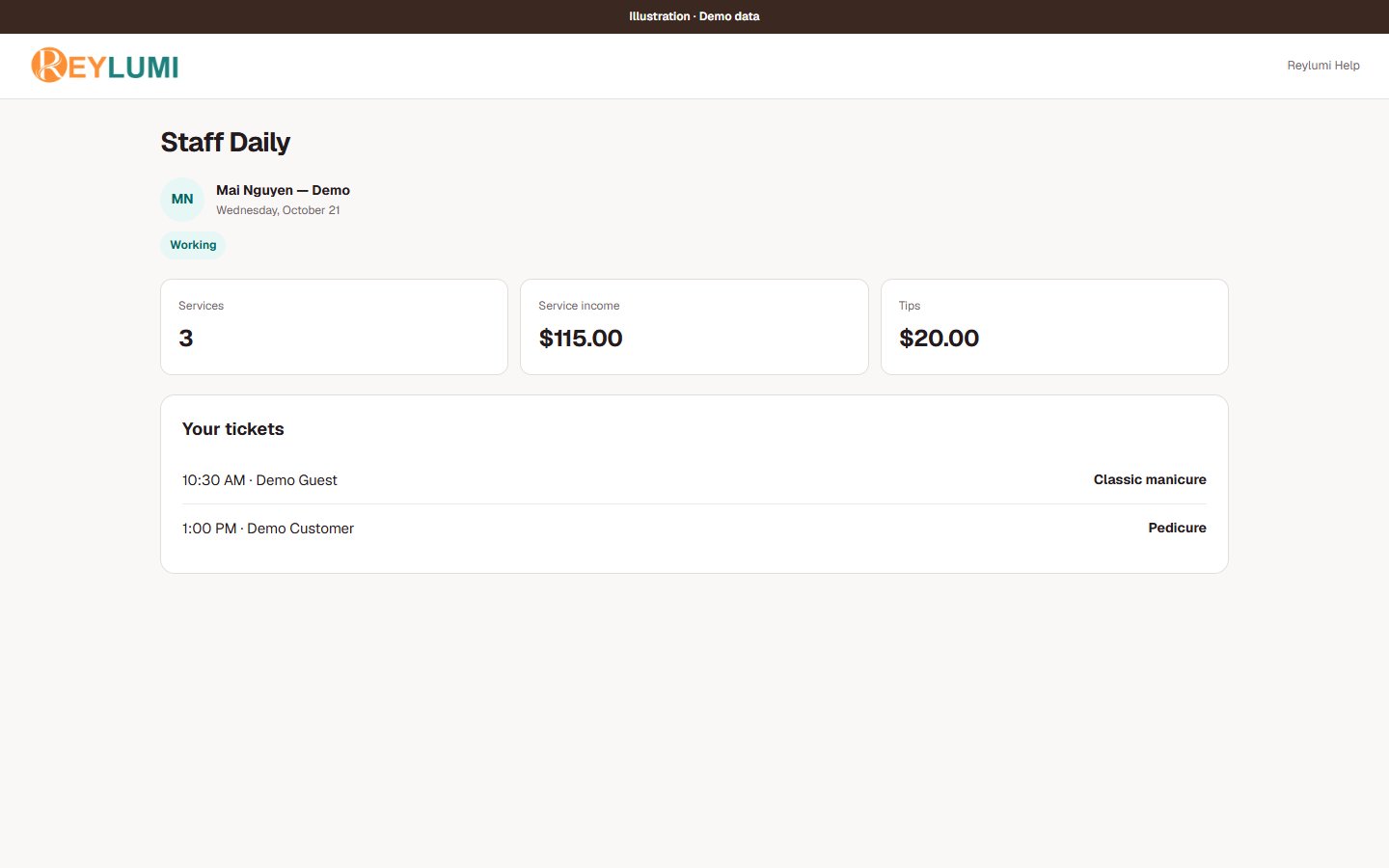
Use Staff Daily for your own work and appointments. It requires an active linked staff profile; the owner Today dashboard is a different workspace.
Check your appointments and pay
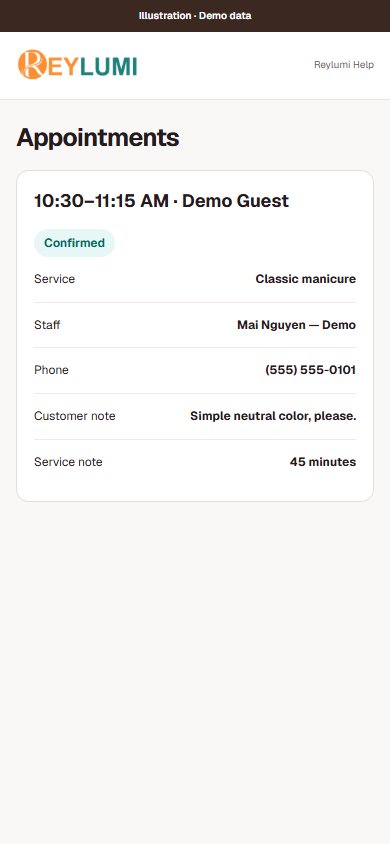
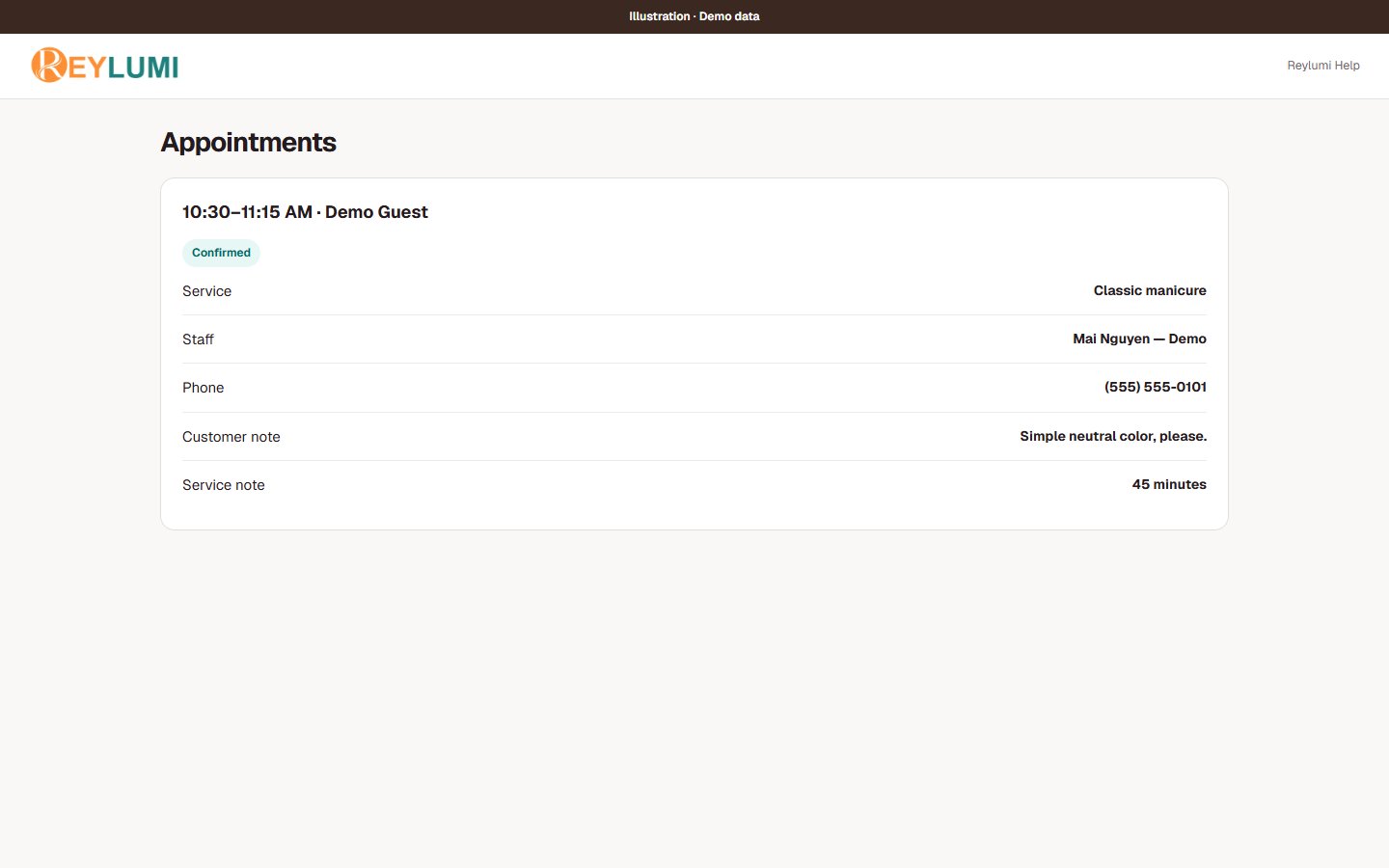
Use Appointments to open an assigned booking and its customer or service notes. In Staff Daily, Today shows current work and My Pay shows the available payroll records for your linked profile.
Detailed walkthroughs
Apply to a salon or accept an invitation
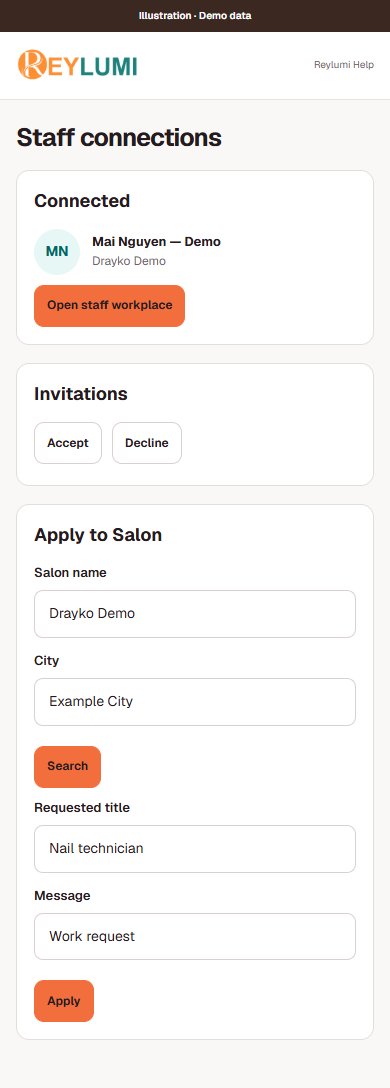
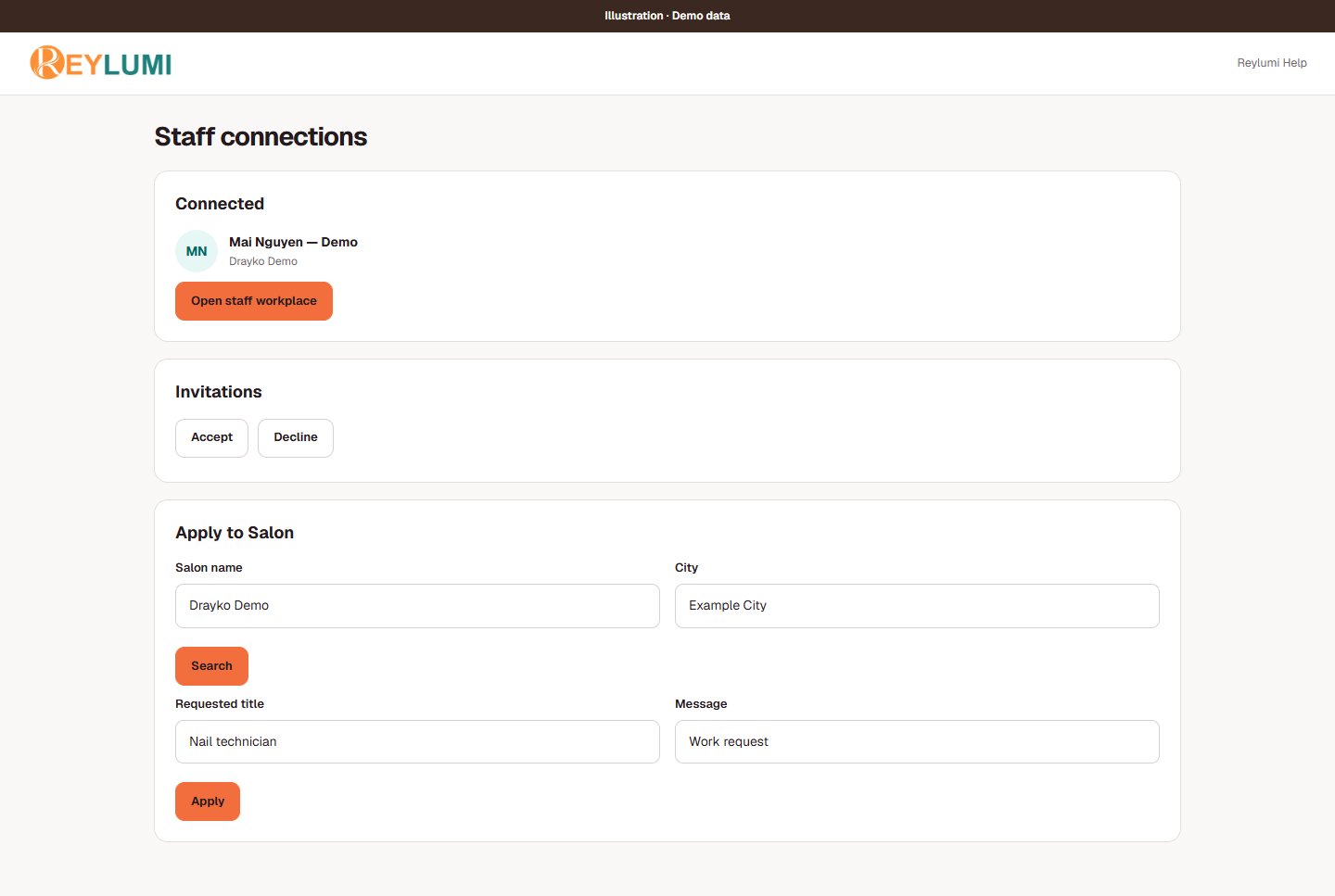
- Open Staff connections → Apply to Salon. Enter Salon name, City or State and choose Search. Only active salons that accept staff applications appear.
- Check the address, enter Requested title and a short Message, then choose Apply. Follow the request under My Applications.
- For an owner invitation, open Invitations, verify the salon and choose Accept or Decline. Open staff workplace becomes available for an accepted connection.
Check the result: The connection is accepted and the linked staff profile is active in the intended salon.
Example: Mai searches Drayko Demo, enters “Nail technician” and applies. Pending means the owner has not accepted it yet.
If something goes wrong
- No matching salon: check spelling and city; the salon may not accept applications. Ask the owner for an invitation.
- Use Cancel application for an incorrect pending request. Do not accept a different salon or staff identity just to gain access.
Use Staff Daily on your own device
- Sign in with your linked personal account, choose the correct salon and open Staff Daily.
- Open Today for your tickets. Open Appointments for your assigned bookings and their customer/service details. Check the date before acting.
- Open My Pay and select the period to review your available payroll record. On iPhone/iPad, you can save this private page with Safari → Share → Add to Home Screen if offered.
Check the result: Your name, assigned work and selected period match your staff profile.
Example: Mai uses Staff Daily on her phone; a separate iPad at reception shows Customer Display.
If something goes wrong
- No active staff profile is linked: ask the owner to review the account connection and active status. A POS ID is not a personal staff account.
- Staff Daily contains private work and pay information. It is not a public staff-display pairing screen.
Screen illustrations